-
- Select the Contracts button on CCMS application toolbar.

Figure 145 – My Contracts button on CCMS toolbar.
- Select the contract to determine if any Force Accounts are available. Force Accounts are entered by the RE in the CPOM application and synced to the tablet.
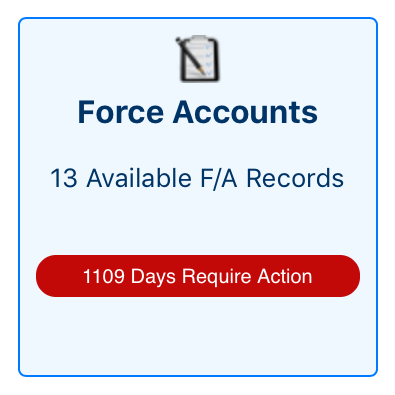
Figure 146 - Force Account Tile Link
- Tap the Force Accounts menu. If action is needed on any of the Force Accounts you will see the Require Action notification in the menu.
- The Force Accounts page displays a list of force accounts for the contract. The Required Action notifications are broken down further to actions required for each Force Account in the Contract.
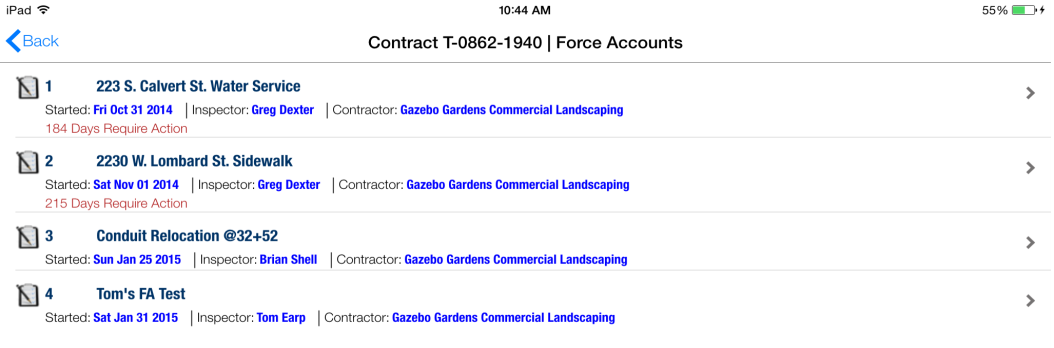
Figure 147 - Force Accounts records currently in contract.
- Tap a Force Account to access the Force Account calendar.
- Tap the date to start a Force Account Record using Calendar. The calendar will display the status of the Force Account Record for each day since the Force Account was started. If you are not the primary inspector you will not see a status for the date, however you can enter a force account record if needed.
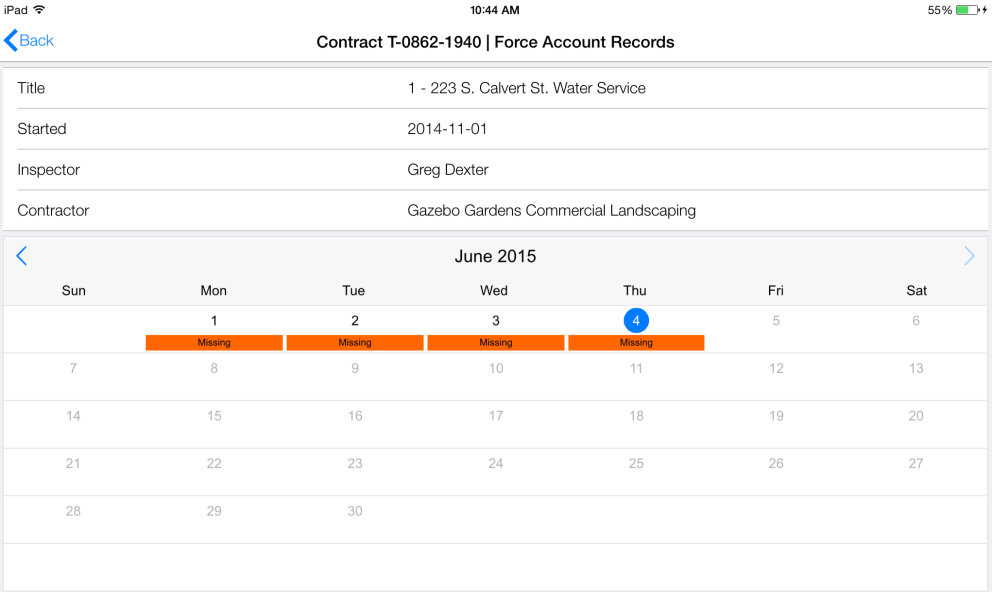
Figure 148 – Force Account calendar view. Pick date to start Force Account task.
- If the user is not the Force Account’s Primary Inspector the following message will appear. Tap Yes to CCMS No Force Account Task message to start a new force account task.
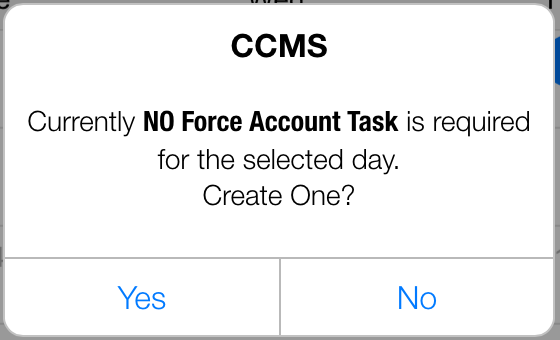
Figure 149 - NO Force Account Task message. Select 'Yes' to start Force Account task.
- The Force Account Record home page is shown and user can begin editing.