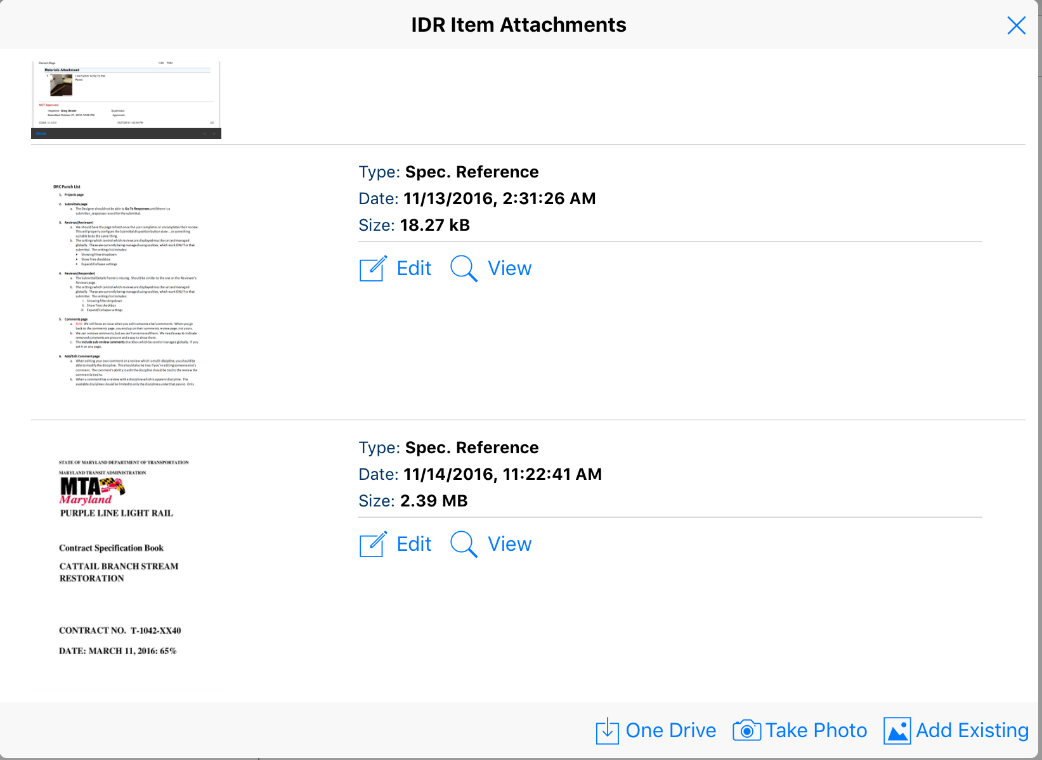
-
- Tap the OneDrive Button located at the bottom of the Attachments form.

- The CCMS OneDrive Module will be loaded.
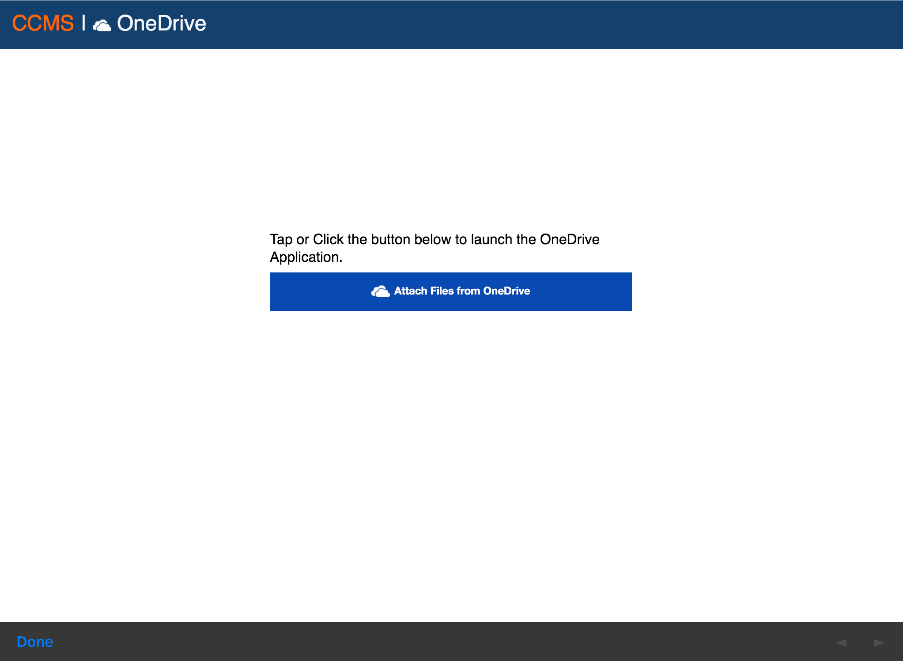
- Tap the Attach Files from OneDrive button.
- You will be required to login to your OneDrive account. Please note this is typically not your CCMS login. The OneDrive system is a separate, Cloud Based, Document Management system. CCMS simply provides an interface to this system. We recommend creating your Microsoft Account prior to using the CCMS OneDrive module.
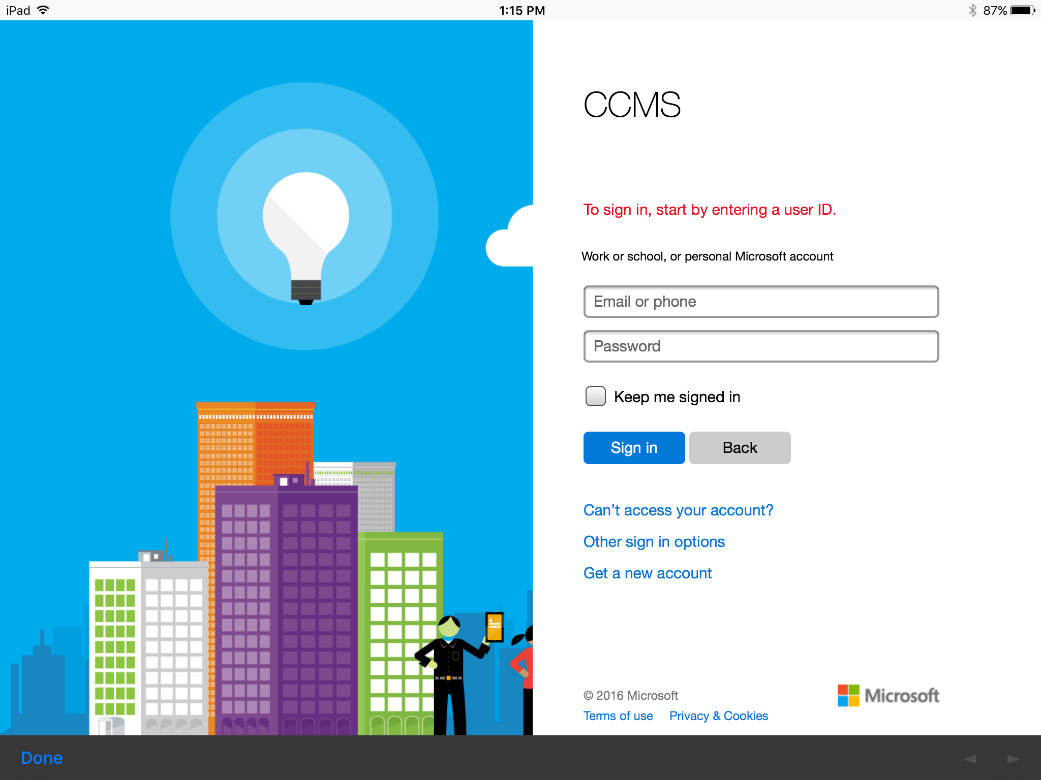
- After you have logged into OneDrive you will see a listing of your files and folders.
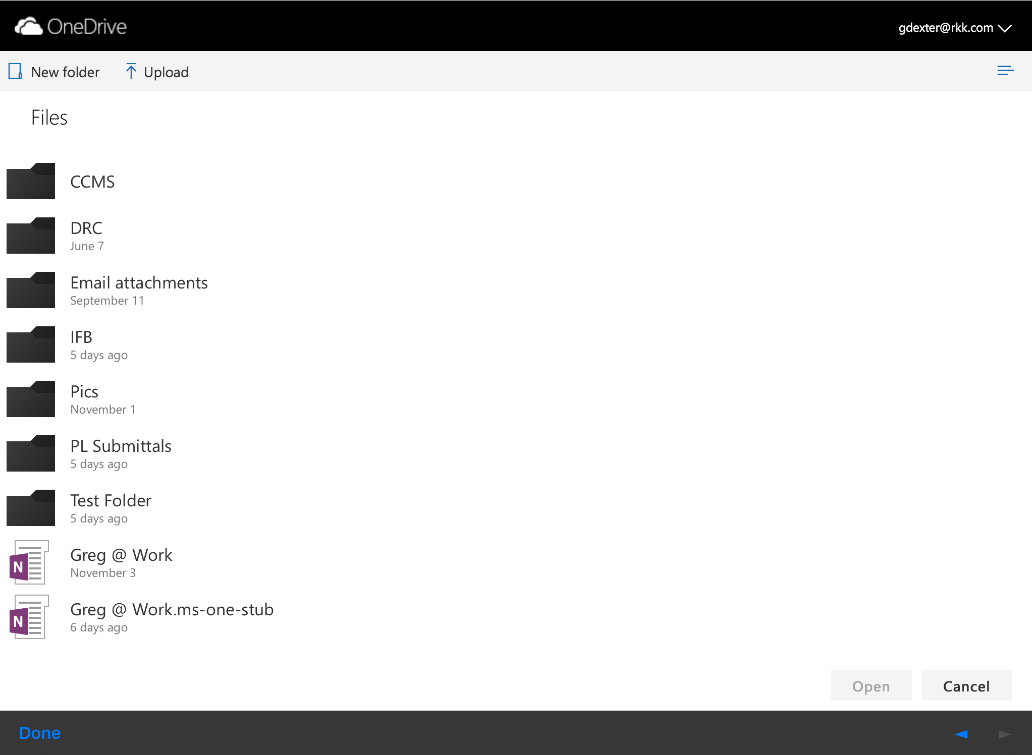
- Locate the file you wish to attach to CCMS and tap Open. Please note, currently the CCMS OneDrive module only supports single file selection from OneDrive.
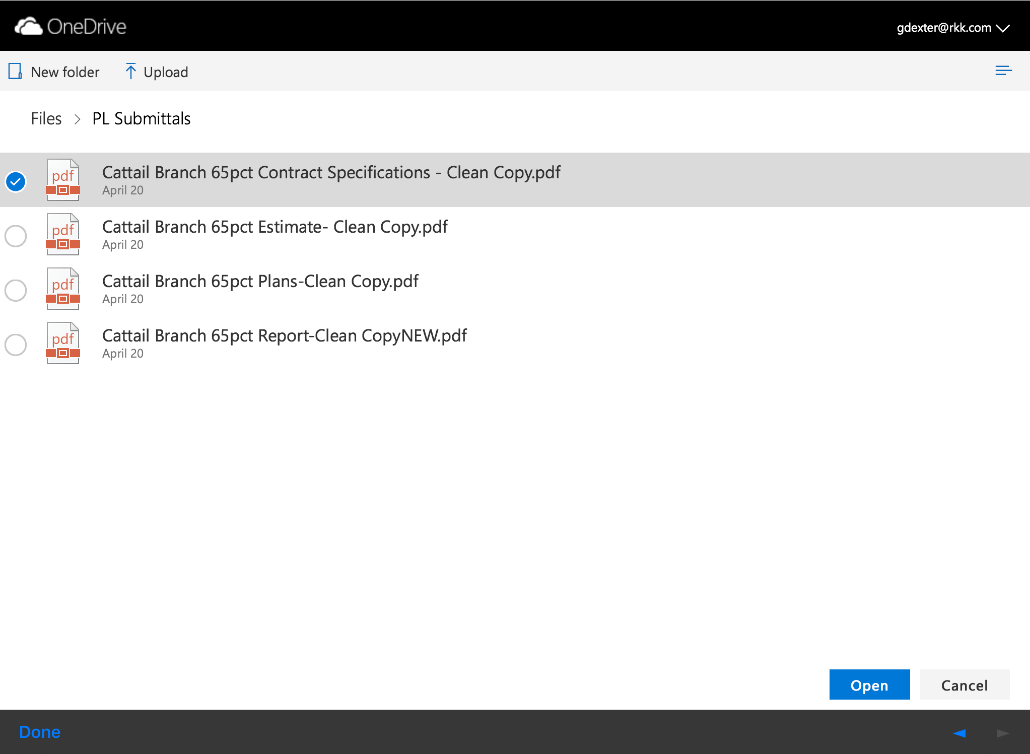
- After tapping Open you will be redirected to a confirmation page containing additional information regarding the file you selected. Depending on the file type, a thumbnail may be displayed.
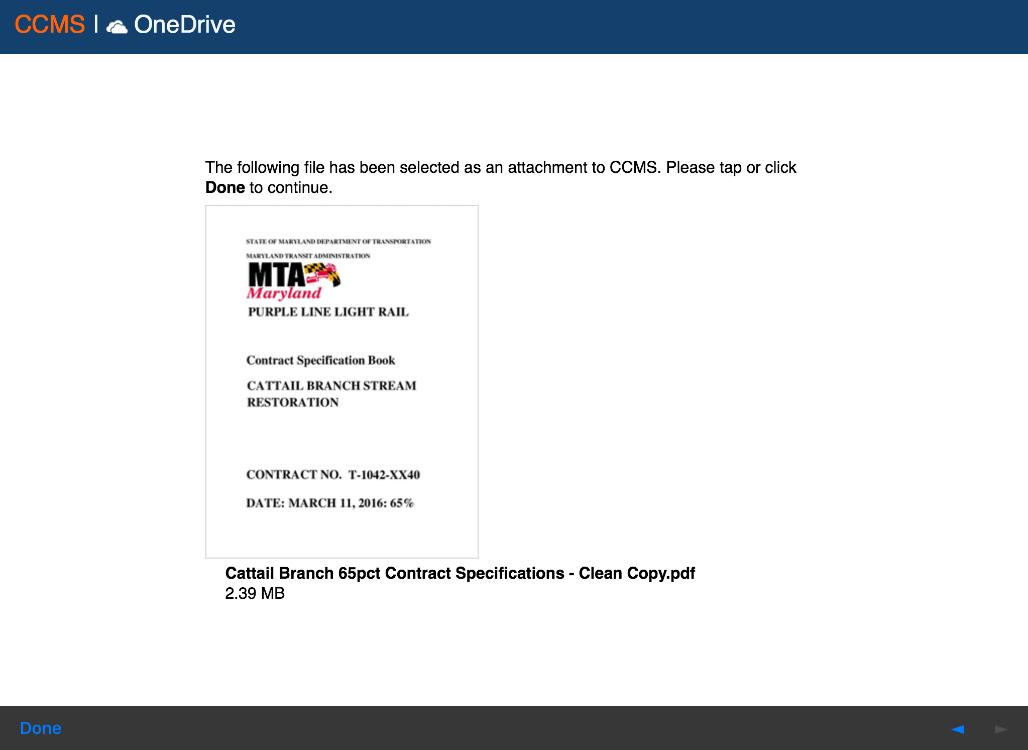
- Tap the Done button in the lower left corner to finish the download.
- The selected file will be downloaded to your device. Depending on the size of the file the download may take a few moments. After the download has completed the Edit Attachment form will be loaded. Use this form to select the attachment type and enter an optional caption for the attachment.
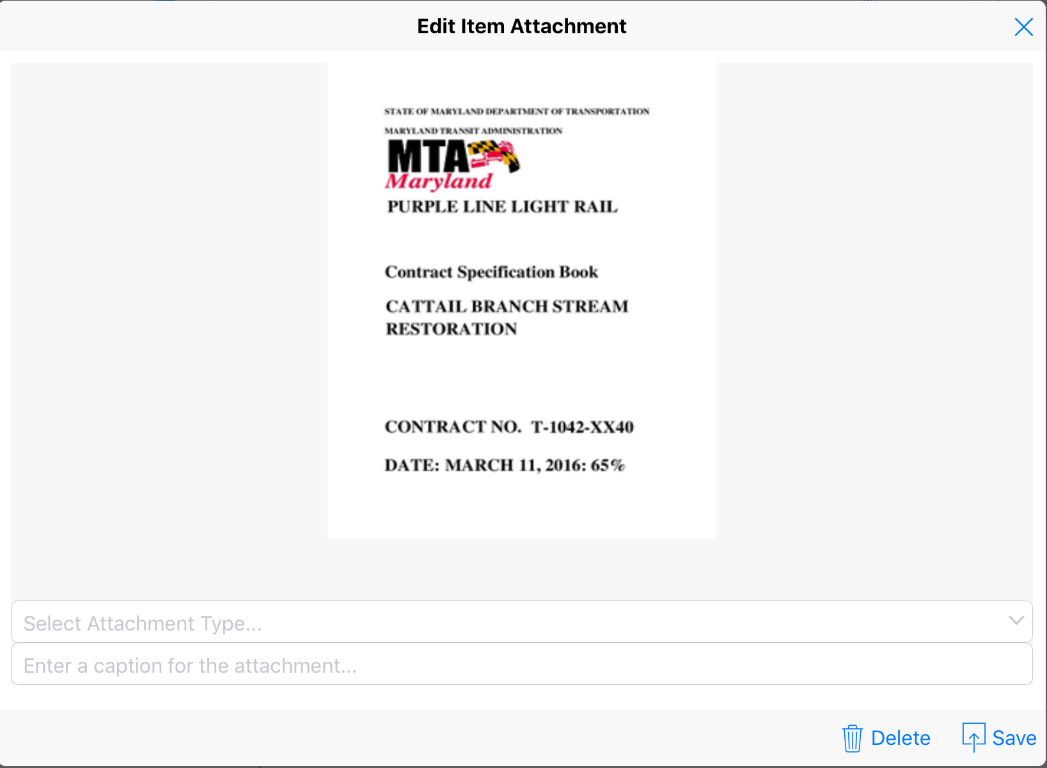
- Tap Save to complete the operation.
- After the attachment is saved you will see an entry in the Attachment List.