10.13.2 Auditing IDR Pay Item Entries
Auditing IDR Pay Items begins with selecting the contract pay item from the drop-down list.
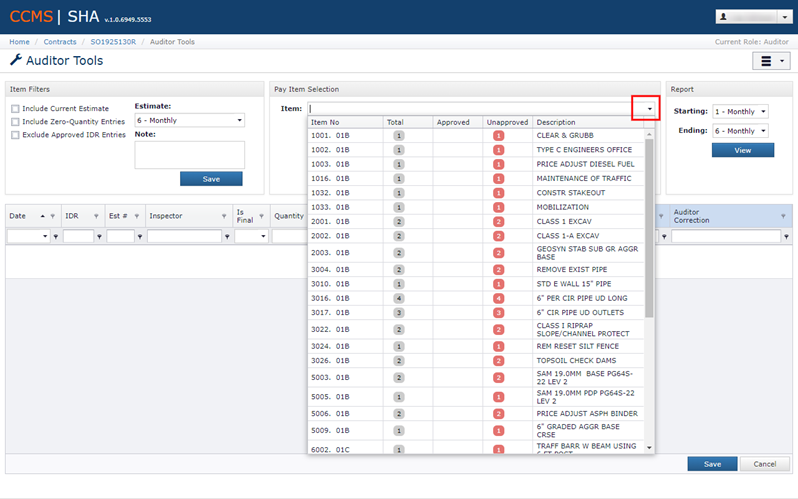
After applying any filters for the Pay Item list, use the drop-down button to expand the item list. The Items drop-down control also supports the “type as you go” filtering of the items in the list.
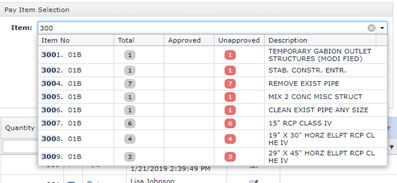
The Item drop down list is divided into five information columns.
- Item No. – The contract item number.
- Total – This column shows the total number of IDR Item entries based on the filters selected.
- Approved - The number of IDR Item entries approved by the auditor
- Unapproved – The number of IDR Item entries which require auditor approval.
- Description – General Item description.
- After an item has been selected, the IDR Item entry grid will be loaded with all the IDR Item entries available for audit.
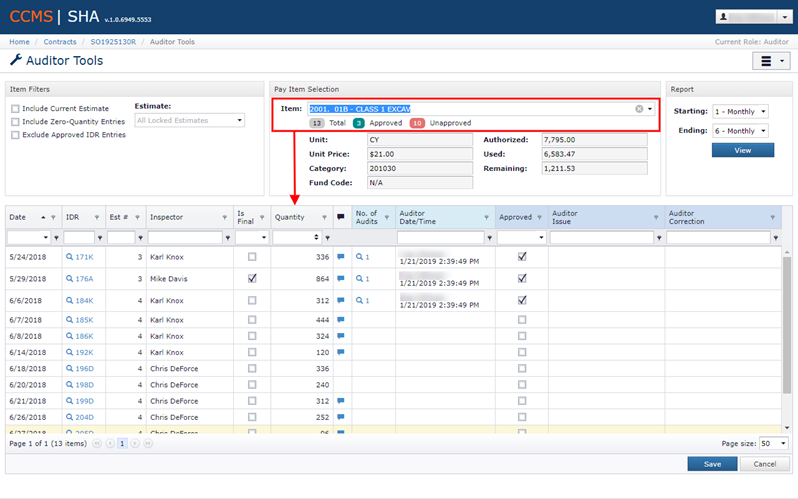
The IDR Item entries grid contains tools and information to assist in the auditing process.
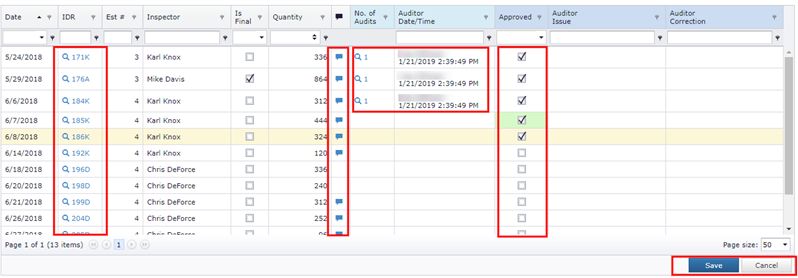
- IDR - This column provides a link to view the IDR Item Details. Clicking the link will load the IDR Item Details pop-up window.
- Remark – If an IDR Remark was entered for the item, the remark button provides a quick access popover to view the remark.
- No. of Audits – This column contains a link showing the number of audits performed on the IDR Item entry. Clicking the link opens the Audit History form.
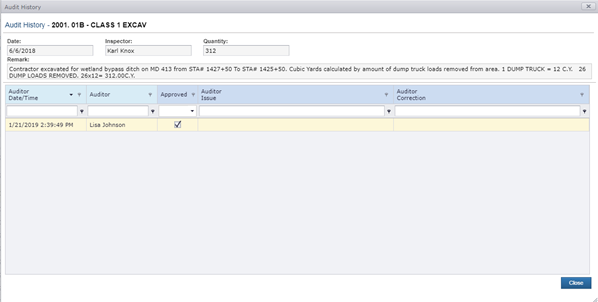
- Auditor Date/Time – This column shows the name of the auditor (when the item has been approved as part of the auditing process) and the date and time the audit was performed.
- Approved – This column provides a check box allowing the auditor to confirm approval of the IDR Item entry. The auditor may optionally add:
- Auditor Issue - A brief description of an issue regarding the IDR Item entry.
- Auditor Correction – Explanation or supporting text for correcting an IDR Item quantity during the auditing process.
- Save – After the desired IDR Item entries have been approved by the auditor, click the Save button to update the master database.
Next Topic: Progress Payment