-
In order to attach a document, the Item record must already exist in the IDR.
- Select the Item record to add attachment
- Tap the Add Attachments link in Edit IDR Item form

Figure 91 - Add Attachment link on Edit IDR Item form

Figure 92 - Select Take Photo or Add Existing
- Select Take Photo or Add Existing in IDR Item Attachments form
- Add Existing
- Tap the Add Existing button
- Select photo to attach from tablet Photo Library/Camera Roll
- In the Add Item Attachment form, enter any caption or remarks regarding the document in the text box and tap Save
- Tap Close
- Take Photo
- Tap the Take Photo button
- Tap OK to allow CCMS to access the device camera (NOTE: Warning message box will only appear once, during the initial Take Photo request using tablet)
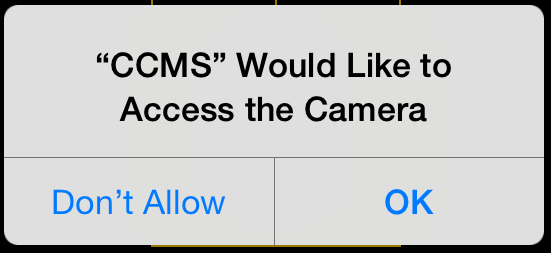
Figure 93 - Camera Access warning message will only appear on initial Take Photo request
- Tap Use Photo to use the photo taken or Retake to take another photo
- Tap Allow if prompted for by the location warning (NOTE: Warning message box will only appear once, during the initial Take Photo request using tablet)
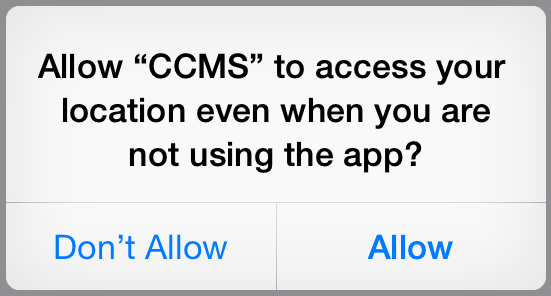
Figure 94 - Location Access warning message will only appear on initial Take Photo request
- In the Add Item Attachment form, enter caption or remarks for photo in text box
- Tap Save
- Tap Close
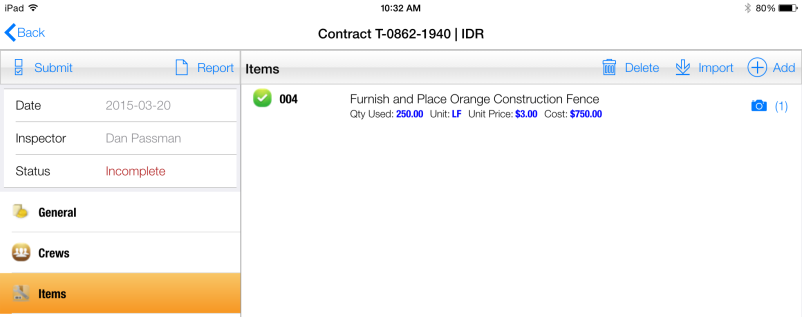
Figure 95 - New Item attachment added successfully
- One Drive
See OneDrive Attachments Section