11.4.1.1 Current Estimates Tab Page
The Current Estimates tab page provides details on the current estimate (progress payment) period. The current estimate period is shown in large text in the upper left corner.
The rest of the tab page is organized into several frames, a grid and a button group, each covered below.
Settings Frame - The Settings frame contains editable sections and buttons for managing the current progress payment.
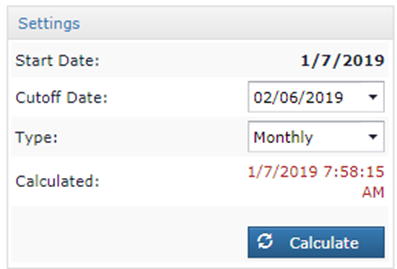
- Start Date - Indicates the starting date of the current progress period.
- Cutoff Date - The progress payment period end date for the current period. Estimate Set Managers can adjust this date. After any change is made to the cutoff date the Calculate button must be clicked to perform the recalculations and save the date entered. This cutoff date becomes the lock out date when the period is locked out.
- Type - Indicates the type of progress payment being generated, which is either Monthly, Semi-Final, or Final.
- Calculated – Indicates the timestamp when the progress payment was last calculated.
- Calculate button – Performs a calculation of the progress payment with the current settings.
General Frame - The General frame contains general costs calculated for the current progress period. These cost components are calculated by the CCMS database and therefore are read only. The sign of the cost indicates if the payment is increased (+) or reduced (-) by the value.
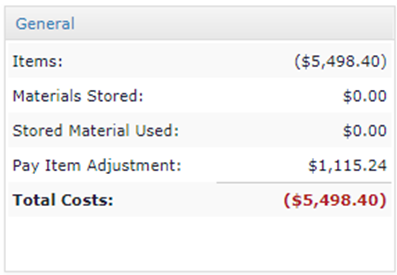
- Items – Sum of the Pay Items for the period.
- Materials Stored – Cost of all materials stored during the progress period.
- Stored Materials Used – Cost of all stored materials used during this progress period.
- Pay Item Adjustment – Sum of all pay item adjustments (i.e. HMA, diesel fuel, etc.) which have been applied to IDRs within this progress period.
Retainage Frame - The Retainage frame displays a breakdown of the retainage settings and details for the current progress period, and the total amount retained.
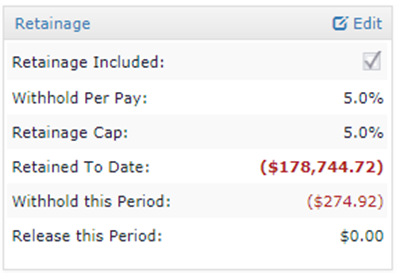
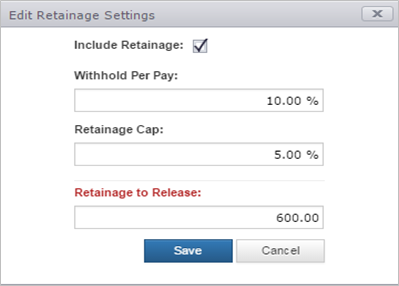
Editing Retainage is available for users with Estimate Set Manager rights for this progress payment. Click the Edit link at the top of the section to load the Edit Retainage Settings form. This form allows the OE/RE to edit the retainage settings for the current progress period. Clicking Save will recalculate the current progress payment reflecting any changes made to the retainage.
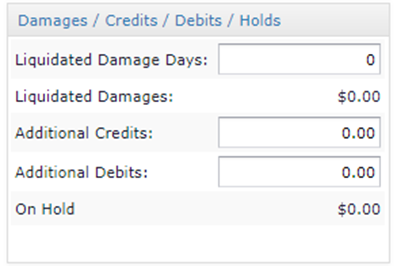
Damages/Credits/Debits/Holds Frame – This frame contains additional editable settings for adjusting the Liquidated Damage Days, Additional Credits, and Debits for the current period. It also displays the total On-Hold costs of Pay Item or IDR Item holds currently active and affecting this payment period. This section is editable for users who are Estimate Set Managers. After modifying these settings click the Calculate button in the Settings Frame to apply the changes to the current estimate period.
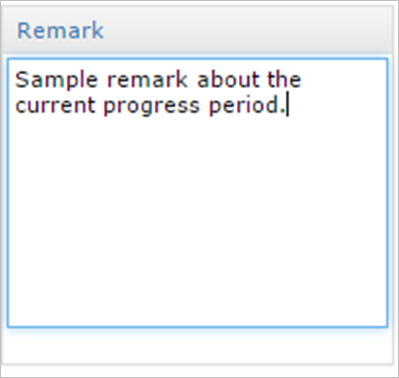
Remark Frame - The Remark frame allows users with Estimate Set Manager rights to enter a specific remark regarding the current progress period. Click the Calculate button in the Settings Frame to save the remark.
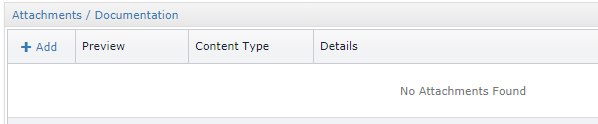
Attachments/Documentation Grid – This grid displays all file attachments which have been added to provide documentation for the current progress payment period. Refer to section File Attachment Grids (4.5.6) for more details.
Buttons
The following buttons are present on the Current Estimates tab page and perform actions on or apply to the current progress period.

Use the Calculate button to apply any changes made to the following elements:
- Cutoff Date
- Type
- Retainage
- Liquidated Damages
- Remark

Clicking the Validate button will instruct the CCMS database to execute a series of validation tests to ensure the Progress Payment is valid and ready for Lock Out. If the Validate function returns errors, you will be presented with a message followed by a report listing the various errors. Clicking on the link will display a report detailing the errors and corrective action needed.


Clicking the Lock Out button will first validate the current progress period (executing the Validate function). If no errors are discovered, the current progress period will be calculated and Locked Out based on the Cutoff Date entered. Once complete, the Progress Payment report will be displayed and a new progress period will be created for the contract.

Use the Freeze IDRs button to temporarily lock IDR’s within the current progress period. The lock will prevent changes from being made to Approved IDR’s falling within the current progress period. The function maybe useful when working out issues with the current progress period.

If IDR’s have been frozen, the button will toggle and clicking the function will unfreeze the IDRs.

Clicking the Report button will generate the Progress Payment report for the current progress payment.
Next Topic: Locked Estimates or Approved Estimates Tab Page