12.2 Exports Page
Exports are used to output the data in Excel format. The output data can be edited as desired.
Navigate to the Exports page using link under Report Management section on Management Tools page.
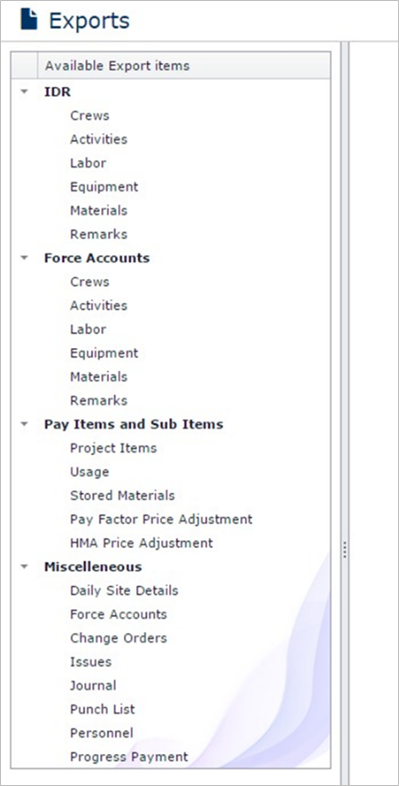
Select an Export from the ‘Available Exports’ lift located on the left side of the page.
Supply any required input. Please note, fields marked with * are mandatory. Non-Mandatory fields are marked using [optional] symbol. A combo box may display ‘All’ results if no item is chosen.
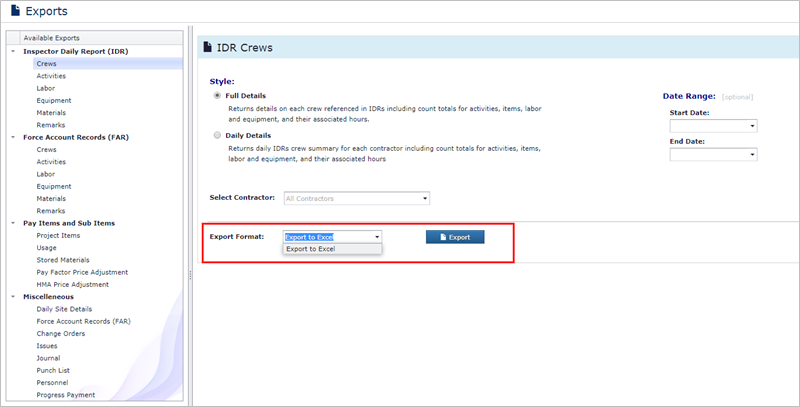
Select the export format and click the Export button to generate the Export.

A progress bar will pop up displaying current progress of the Export. Once the server is done processing data, the export will be downloaded in the selected format automatically.

User can choose to open or save the document locally. Once opened, the data is displayed in tabular format.
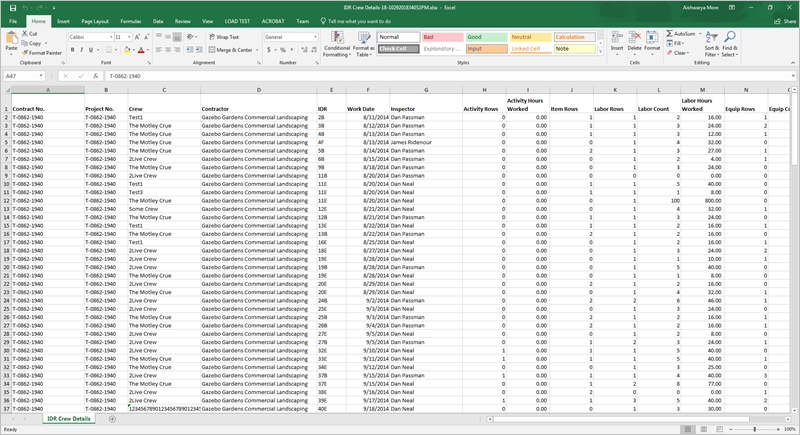
Note: the downloaded document is editable. Thus, users can use filter/sort to see a subset of data.
Next Topic: Item Management