-
- The Sync button is located at the top right of the application window.

Figure 172 - Sync button located on the top toolbar
When changes are detected on the device (which have not been saved to the server), the Sync button color will change to Red. This indicates a Sync should be run at some point during the work day.

Figure 1.1 - Sync button indicator
Tap the Sync button to load the CCMS Sync page.
- The CCMS Sync page loads. If pending changes are detected you will see a warning message and the Run Sync button will be colored red. This indicates there are changes on the device which have not been sent to the server.
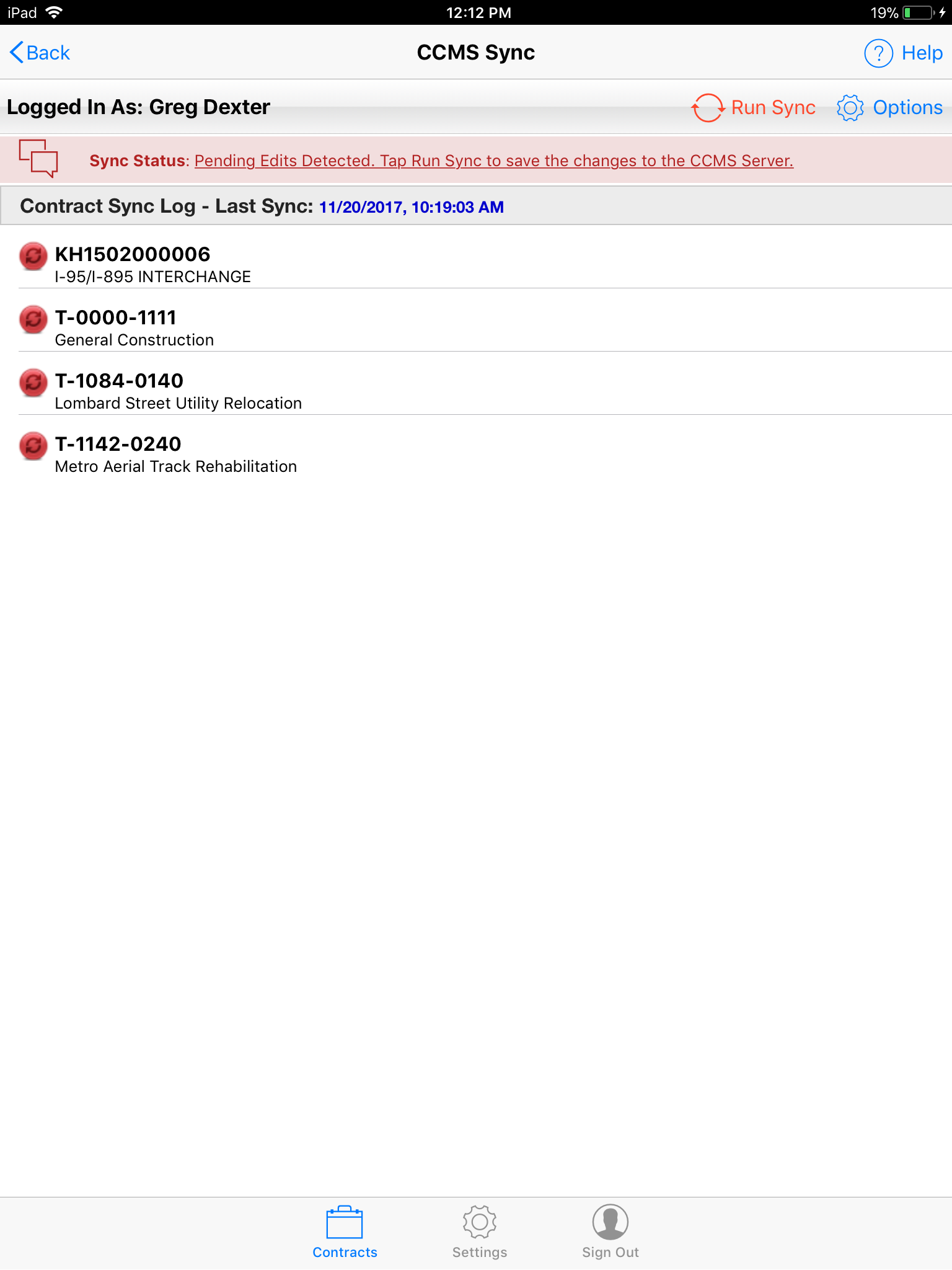
Figure 173 - CCMS Sync form displays User and Contract Sync Logs
- Tap the Run Sync button located at top of page.
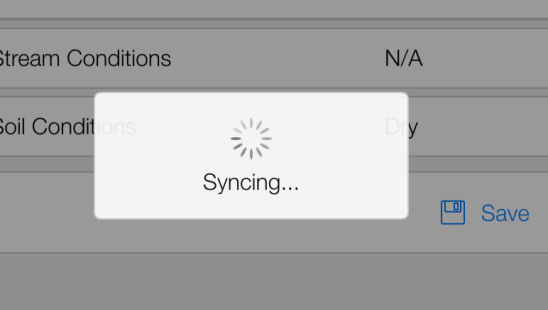
Figure 174 - During Sync several pop ups will appear detailing progress
- If Sync is successful, the Sync Status message will turn green and the Run Sync and Sync buttons will turn back to their default blue color.
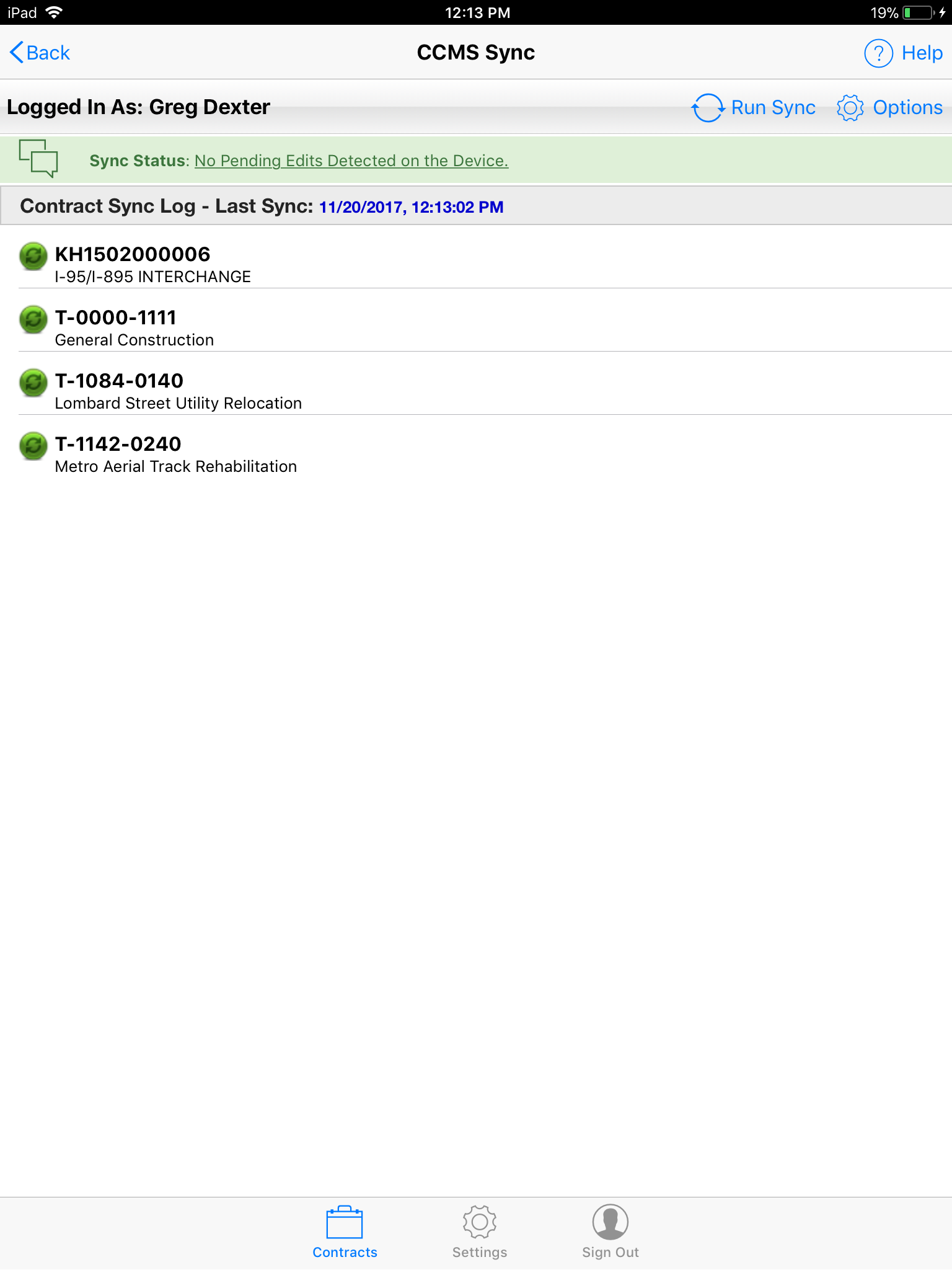
Figure 175 - Successful Sync includes the Last Sync Time being updated
- If errors occur during a Sync operation, a message will display indicating the total number of errors encountered. The user will be given the option to access the Sync Errors form, which displays error detail records and remarks, and helps to determine the actions needed to fix the errors.