-
If the application becomes corrupt or CCMS Support determines that a reinstallation of the application is necessary, the user can access and install the current version directly on the tablet as long as they have Internet access. There are two different types of installs available:
- Full Reinstall – the user will need to uninstall the current CCMS application BEFORE downloading and installing the updated version. Full Reinstalls are typically required when the updated version contains changes to the database itself, or some other major fix.
- Application Update – the user will NOT need to uninstall the current CCMS application before downloading and installing the updated version. Updated versions contain NO changes to the database itself, and generally include very minor fixes.
The type of install required is shown on the CCMS Mobile Portal webpage under the Notes section of the individual version record in the list. Generally, the version to install is shown at the top of the list and will be the only version with a clickable link the user can tap to access.
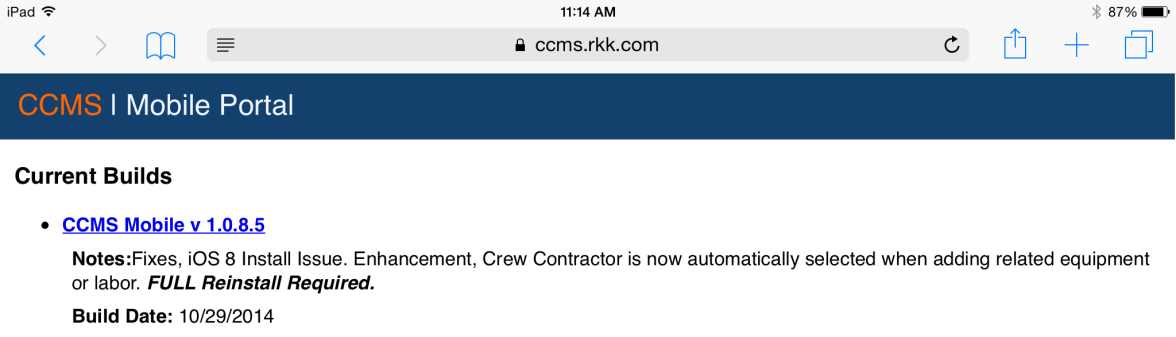
Figure 179 - Current version shown at top of CCMS Mobile Portal page
To reinstall the CCMS application:
- Open up web browser on tablet
- Navigate to the following site: https://ccms.rkk.com/mobile
- CCMS Mobile Portal – Current Builds page loads
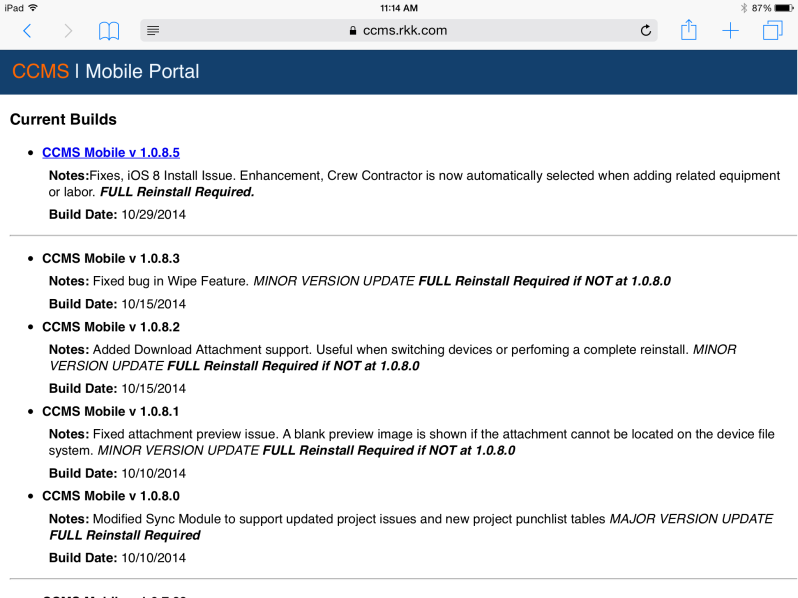
Figure 180 - CCMS Mobil Portal page lists all versions of application
- Tap link for current CCMS version to install (only version with click-able link)
- Tap Install on CCMS Install Message form
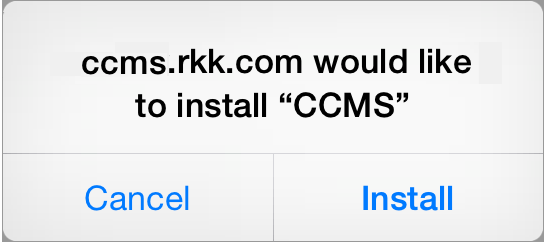
Figure 181 - CCMS Install warning message
- Once successfully installed, new CCMS icon will appear

Upon opening of application after a Full Reinstall, the user will have to proceed through the CCMS Initialization process (See section on ‘Setup > Initialization’ for information on that task).