-
If the user is having trouble with the Sync, there is the option available to Reset the Local Database. This would only be necessary if the changes and edits made on the tablet did not make their way into the master database through a normal sync. The reset function will attempt to Sync pending changes to the master database, however errors are ignored, so there is a potential for loss of local changes during the reset. The user will then go through the Initialization process again, and start over with a clean database.
- Tap the Settings button on the CCMS Application toolbar

Figure 182 – Settings icon, located on CCMS toolbar
- On the CCMS Settings page, under the Database and Sync tab, tap the Reset button next to Reset Local Database field
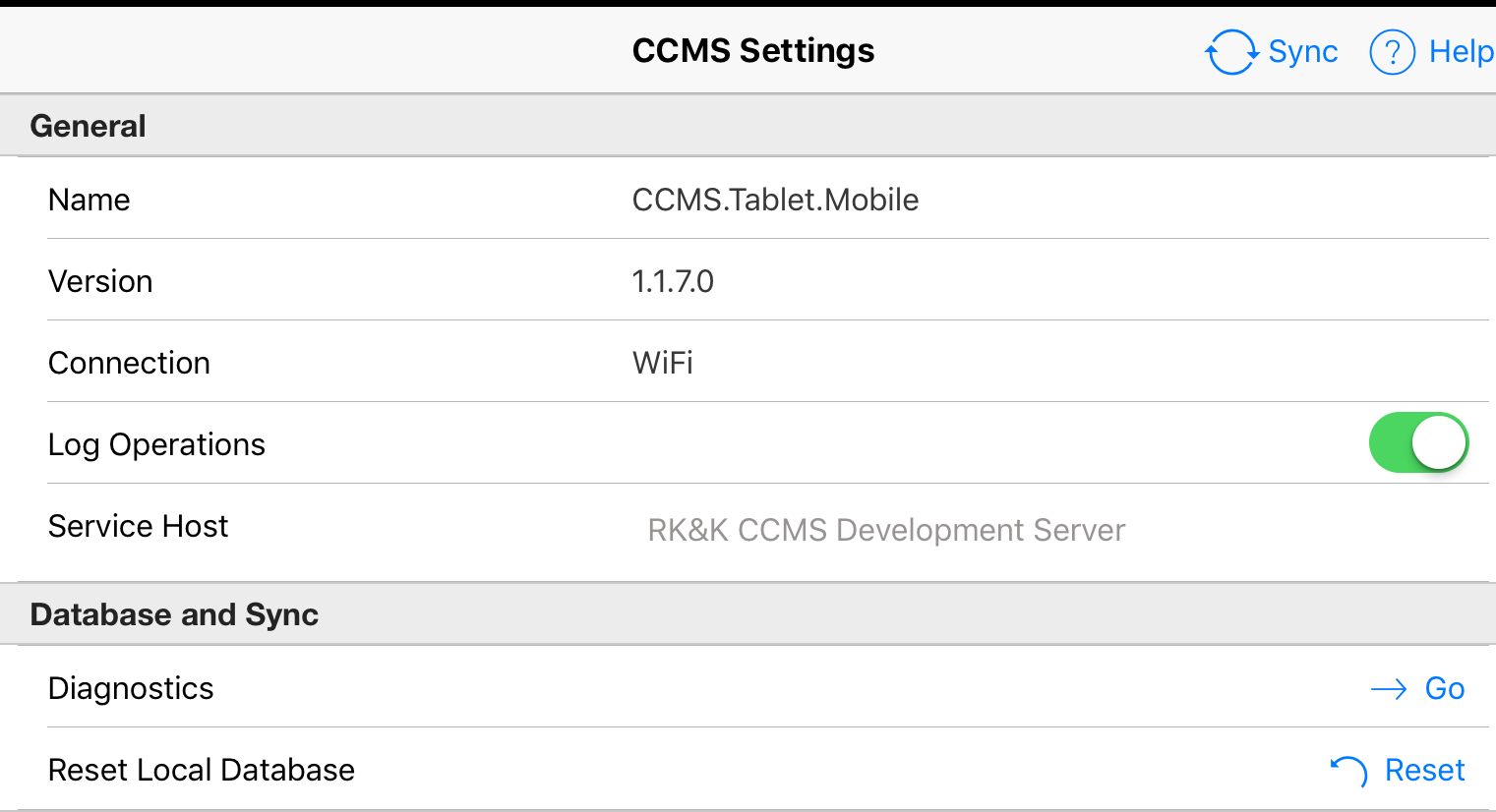
Figure 183 - CCMS Settings form. Reset Database button
- Tap Yes to the CCMS Reset Warning message
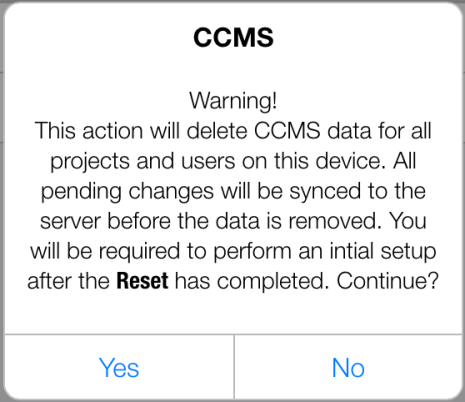
Figure 184 - CCMS Warning Message
- Tap OK to the CCMS Initial Setup message
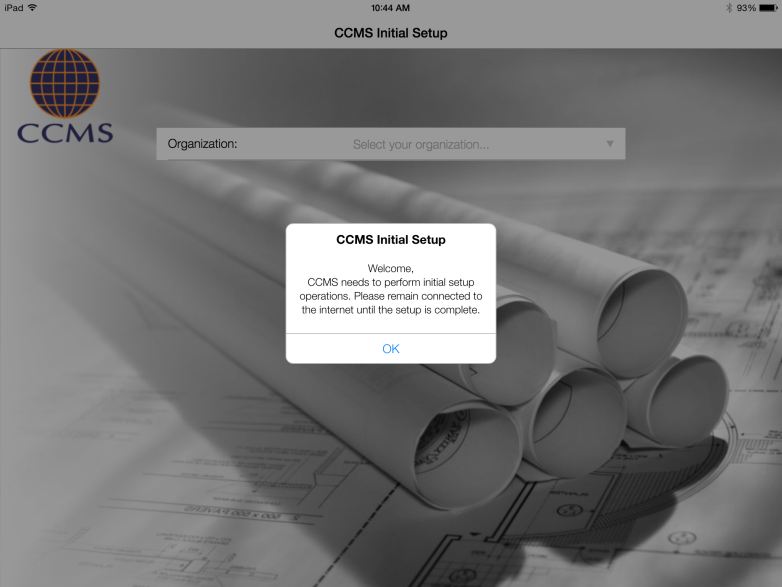
Figure 185 - CCMS Initialization after Reset Local Database
- Enter user name and password. (NOTE: Organization CANNOT be changed)
- Log in after Initialization is complete