-
Once the application has been initialized, the Login screen will automatically pop up with each successive opening of the CCMS, so no action is required to access it. A separate Sign Out button is available inside the app.
Log In
In order to log in to the CCMS application the tablet needs to be connected to the Internet via Wi-Fi or cellular service. It is not possible to login without begin connected to the Internet.
- Tap on the CCMS icon.
- When Login box appears, enter the user email and password.
- Tap the Login button.
- Upon successful login, My Contracts page should display.
Sign Out
The Sign Out icon (along with several other function icons) is shown in the function toolbar, which is located on the bottom of the screen on every page in the application.

Figure 8 – Application Function toolbar at bottom of screen
To log out of the application:
- Tap the Sign Out button.
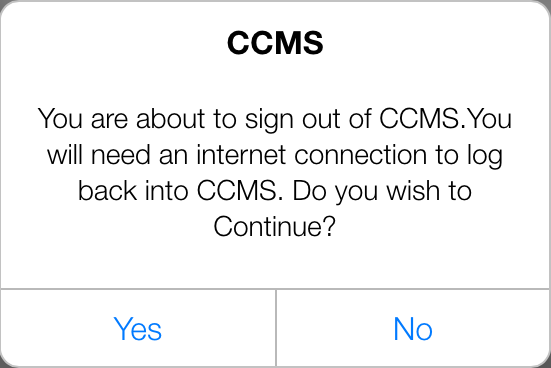
Figure 9 - CCMS Sign Out warning message
- Tap Yes when asked if you wish to continue.