-
After login, a list of contracts associated with the user's account is shown on the default My Contracts page.
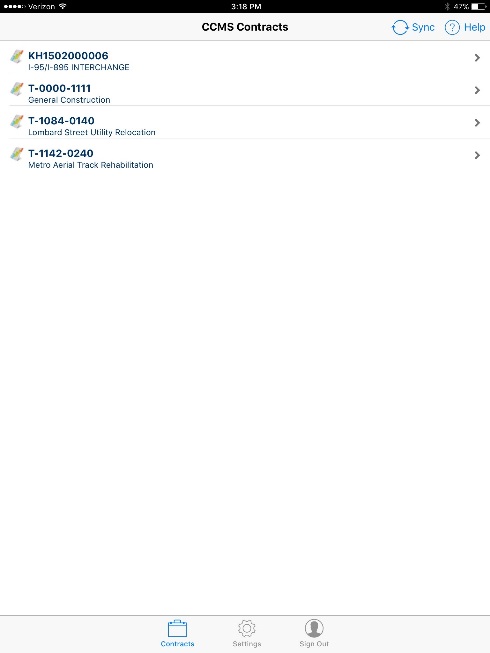
Figure 10 - My Contracts page displays after successful login
To select a contract, tap the contract name.
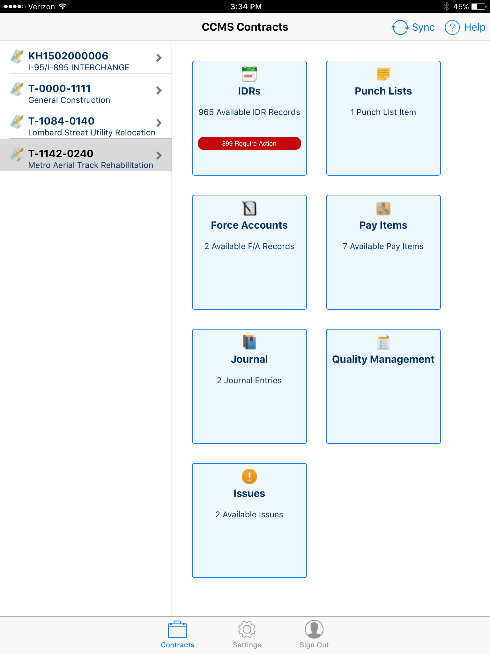
Figure 11 - Selecting the contract accesses contract specific tabs
Once a contract has been selected, a list of tiles will appear on the right side. Users can tap on each item in the list to access that section of the contract. The sections include:
- IDRs
- Force Accounts
- Project Journal
- Specifications
- Issues
- Punch List items
- Pay Items
- Quality Management
Note: To return to the Contracts page at any time, tap the Contracts icon located in the CCMS Function toolbar on the bottom of every page.
Note: Most lists within the tablet application can be refreshed by dragging them downwards and letting go. If the entire window drags downwards, push up slightly before dragging downwards.