-
The inspector has two methods available to start/access an IDR, using either an IDR History List view or Calendar view option, both of which are accessed through the same page. To start an IDR:
- Select the IDR tab for the selected contract on the My Contracts page.
- The following IDR home screen will appear:
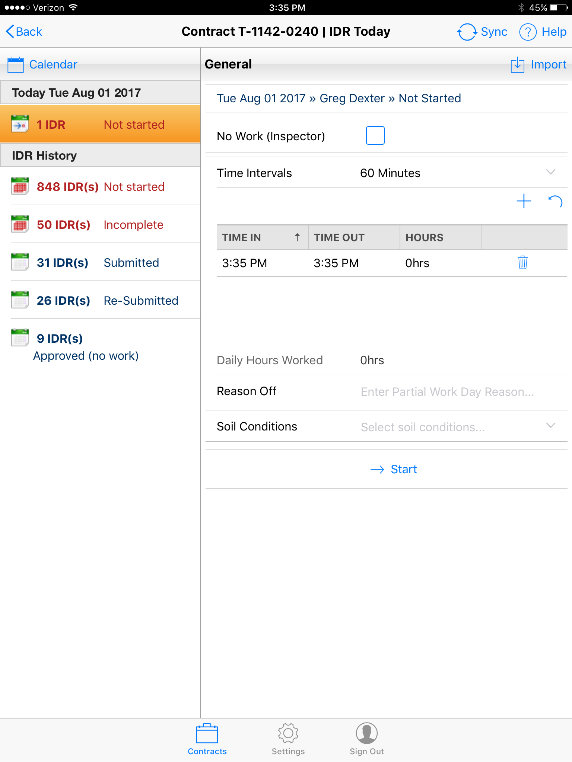
Figure 12 - IDR Access page for Calendar & List Views
IDR History View
The list view option displays down the left side of the IDR Today page, and organizes the IDRs based on the IDR Status designation. Clicking on an IDR Status entry (Not Started, Incomplete, Rejected, Submitted, etc.) provides a list of all IDRs matching this IDR status state. IDR Status entries displayed in red text indicate the active user’s attention is necessary (i.e. “ball in court”).
IDR Calendar View
The calendar view option is accessed by tapping the Calendar button located in the upper left corner of the IDR Today page. Upon selection, a pop up calendar will display showing the IDR Status code for every work day.
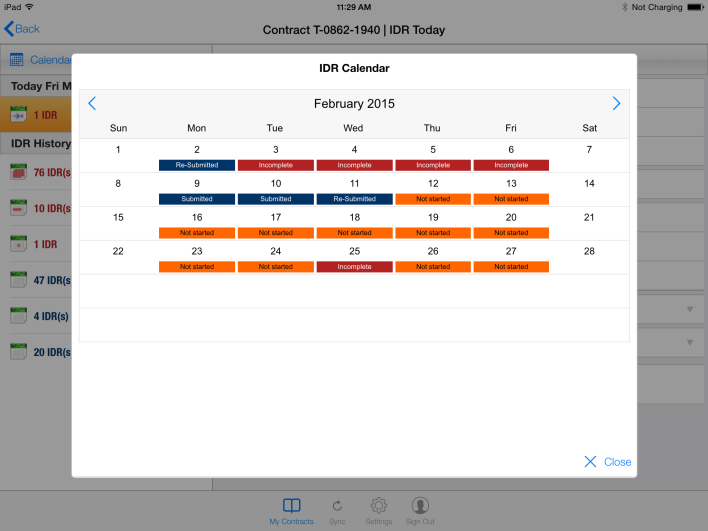
Figure 13 - IDR Calendar View showing various IDR Status Codes
Accessing an Existing IDR
Accessing an existing IDR is accomplished using the same methods available for starting a new IDR and are found on the IDR Today page.
HINT: If searching for an IDR with a specific date, the Calendar option works very well. If searching for an IDR or group of IDRs with a specific IDR Status, the IDR History list view is a better option.