-
- Tap the Crews tab
- Select the Crew from Crew list
- Tap the Equipment button
- Tap the Add button in the Equipment toolbar
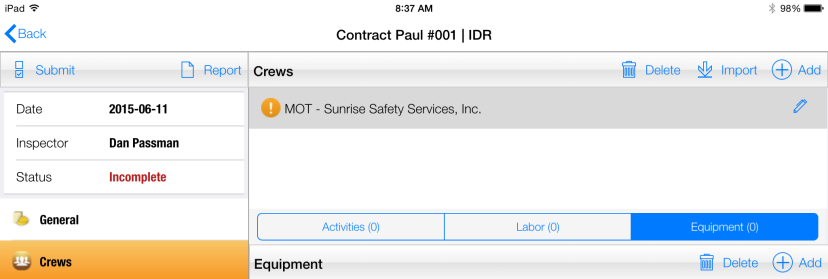
Figure 66 - Add Equipment record by tapping Add button
- In Add Equipment form, tap the Equipment field to access drop down list of project equipment or tap the Find button to search for specific piece of equipment
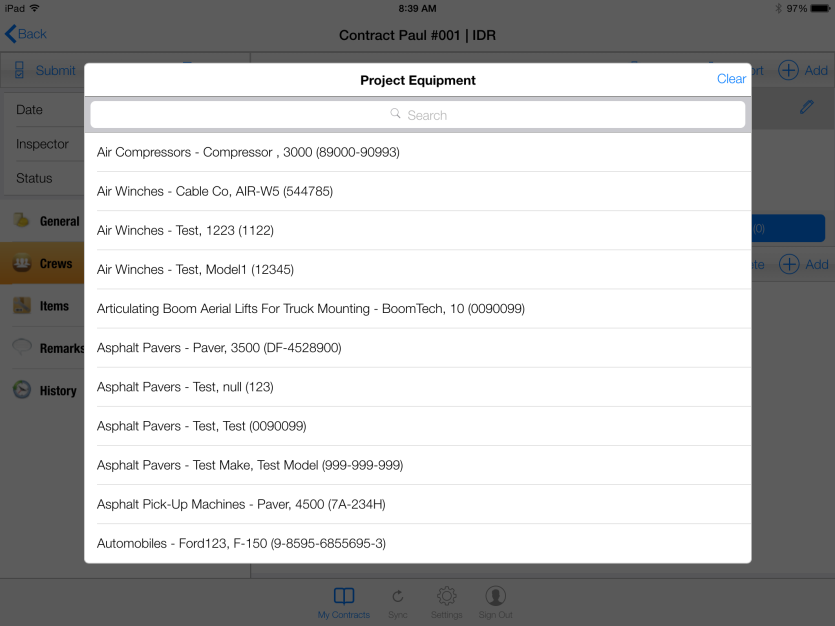
Figure 67 - Select project equipment from drop down list
- Tap the Find button to access the Add Equipment Search form

Figure 68 - Find button on Add Equipment form
- Search for equipment by filtering records first using the Category field and then the Type field
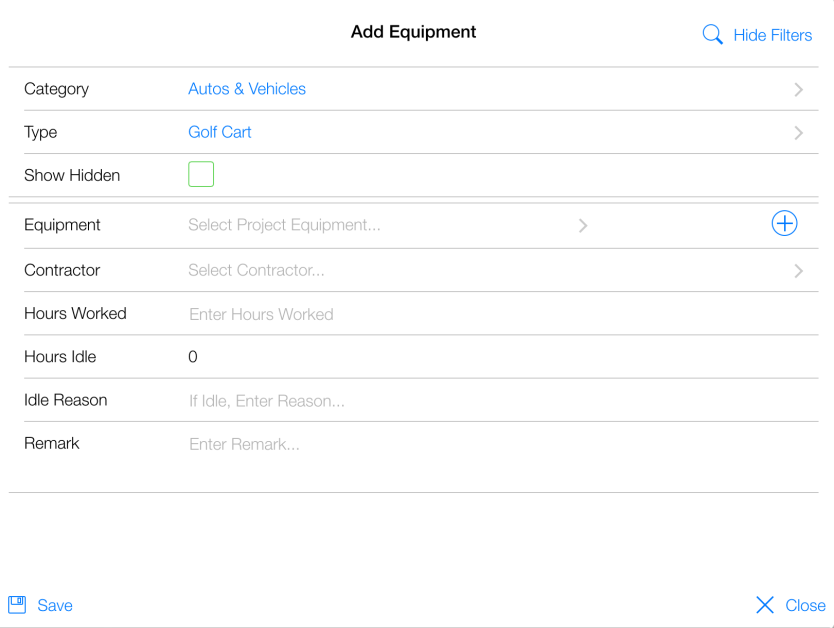
Figure 69 - Filters for Category and Type are set to return all Golf Cart records
- Select equipment using filtered Equipment drop down field list
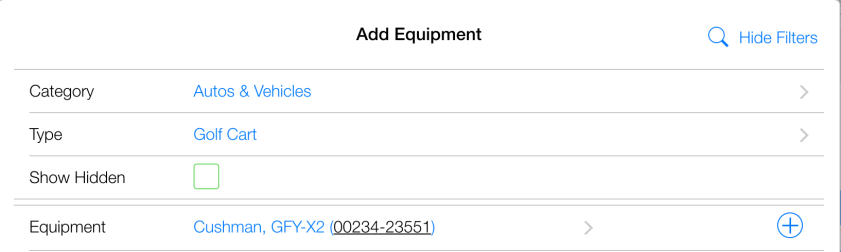
Figure 70 - Equipment record selected using filters
- Enter values for remaining fields (Hours Worked, Hours Idle, Idle Reason and Remarks)
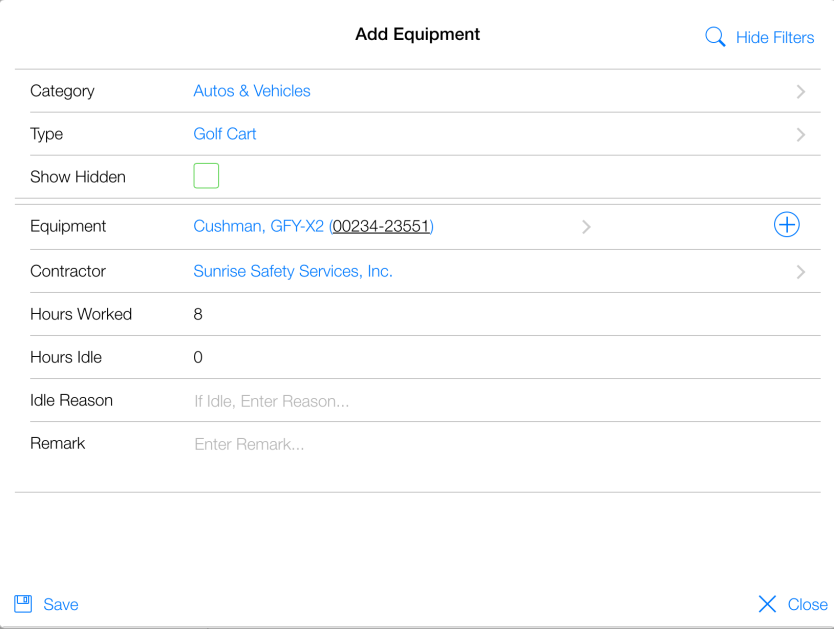
Figure 71 – Completed Add Equipment form
- Tap Save
- Tap Close
- Equipment record successfully added to IDR
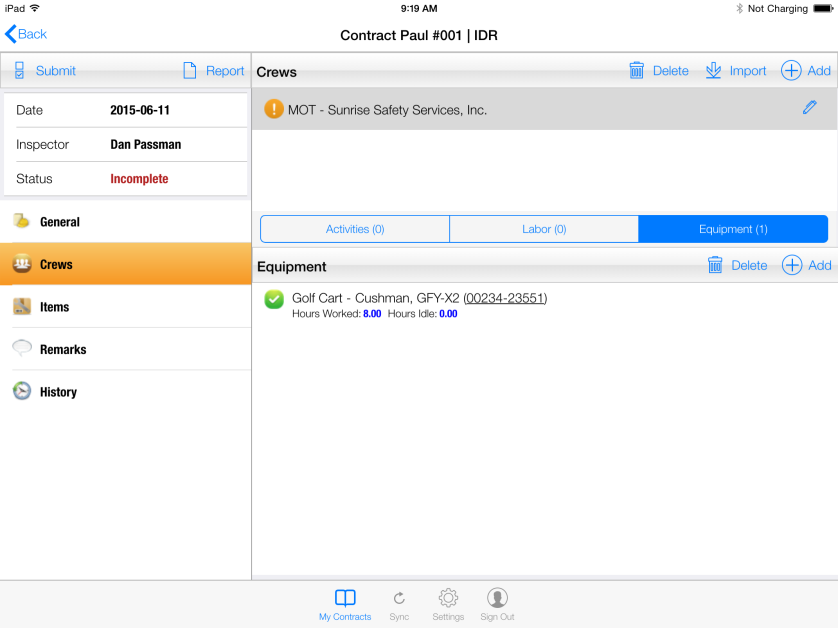
Figure 72 - Equipment record successfully added to IDR