13.1 Pay Items
The Pay Items page contains information about the Pay Items. To see information about a pay item, select the pay item from the drop down. The information is contained in five tabs. The General tab displays core information about the item such as Index, description, authorized quantity, unit and unit price. The information displayed on the General tab cannot be modified by users. This information can be modified only through a change order or an administrator. Pay items cannot be deleted.
You can navigate to the Pay Items page using the Pay Items link under Item Management section of the Management Tools page.
Topics Discussed:
- General Tab
The General tab displays detailed information about the pay item.
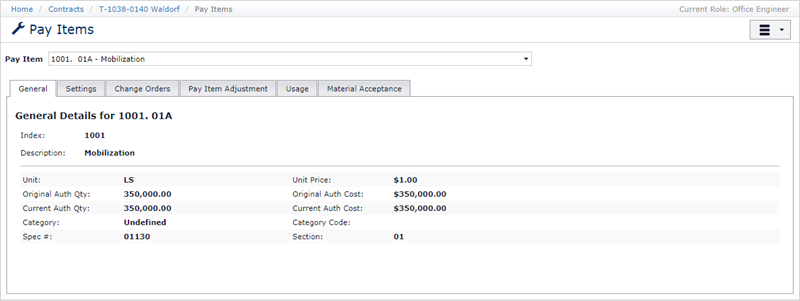
- Index – Pay Item Index
- Description – Pay Item Description
- Unit – Pay Item Unit
- Original Auth Qty – Original quantity authorized for this item
- Current Auth Qty – Current Pay Item Quantity
- Category – Pay Item Category
- Spec# - Spec number
- Unit Price – Pay Item Unit Price
- Original Auth Cost – Original cost authorized for this item
- Current Auth Cost – Current Pay Item cost
- Category Code – 6-digit SHA category code number
- Section – Section number
- Settings Tab
The Settings tab allows user to configure settings for a pay item. Users can hide the item, select a default contractor, hold an item and add an Under/Over reason for the item.
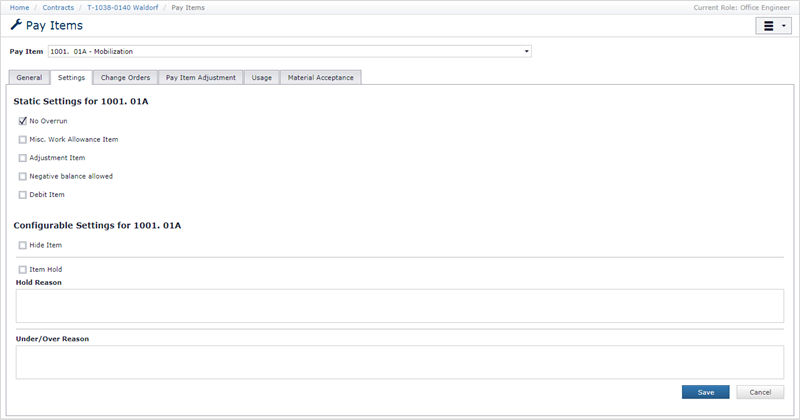
Static Settings
- No Overrun – If TRUE, CCMS will not allow this item to be overrun. The default value for this field depends on the unit.
- Misc. Work Allowance Item (MWA) – If TRUE, this item and all associated pay items and sub items are associated with MWA.
- Adjustment Item – If TRUE, any pay items associated with this base item will be used to apply (pay) item adjustments.
- Negative Balance Allowed – If TRUE, the item may maintain a negative balance (cost < 0.00).
- Debit Item – If TRUE, this a DEBIT item. The unit price is negative (usually $1.00) and quantity is positive.
Configurable Settings
- Hide Item – If TRUE, this item is not shown in the IDR item list.
- Item Hold – If YES, this item has a hold on it and it will not be paid during an estimate.
- Hold Reason [Required only if Item Hold is true] – Reason for the item hold.
- Under/Over Reason – Underrun/Overrun explanation.
- Change Orders Tab
The Change Orders tab displays summary of item cost changes due to change orders along with list of changes orders modifying this item.
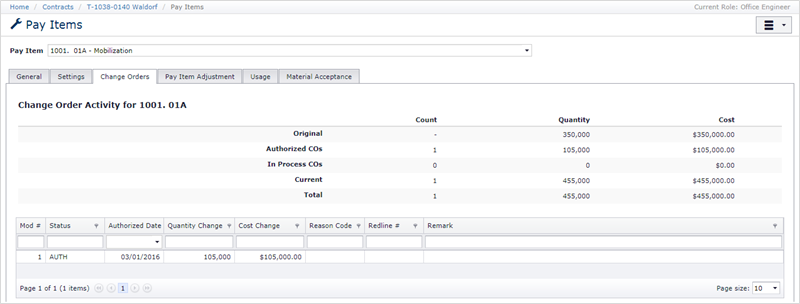
The change order summary displays changes made to the item. The change orders affecting the pay item are displayed in the grid below.
- Pay Item Adjustment Tab
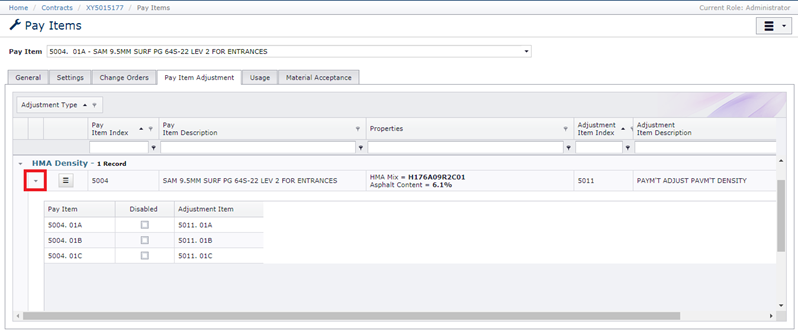
The Adjustment tab displays details on the Adjustments currently configured for the selected item. The grid is organized in two hierarchical levels. By default, the grid is grouped by the Adjustment Type column, and therefore will displays 3 levels, with the top level identifies the Adjustment Type. The 2nd level displays the base item which are being adjusted, identified by the Pay Item Index column and the targeted adjustment base item. The grid’s 3rd level lists all the pay items for the parent base item and identifies the target adjustment pay item under which adjustment costs will be applied.
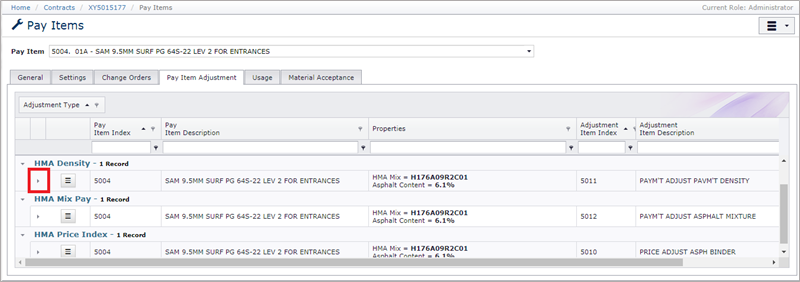
To open or close any level within the grid, click the small arrow triangle on the left-hand side of the grid.
The screenshot below, indicates the base item 5004 has been configured to adjust for HMA Density, HMA Mix Pay and HMA Price Index.
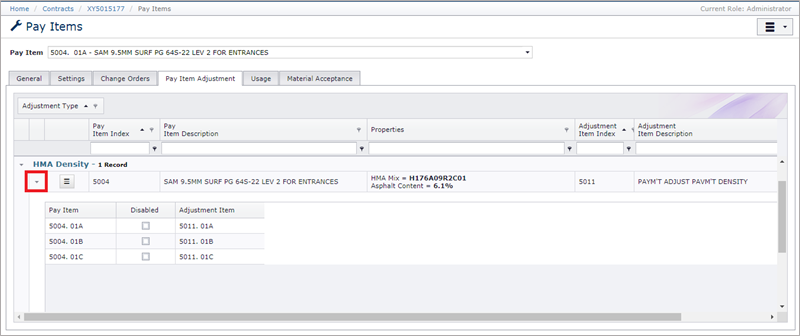
Because a base item may be associated with one or more pay items, the pay item detail is on the level below the base item detail. Click on the arrow and drill down to see pay item adjustment details, showing the target adjustment pay item where computed and applied adjustment costs for the pay item will accumulate. The screenshot below indicates adjustments to the HMA pay item 5004. 01A will be calculated and accumulated in the 5011. 01A adjustment pay item. Adjustments for 5004. 01B will be target 5011. 01B, and so on.
When a non-zero quantity pay item, which has adjustments defined, is entered into the system, one IDR Item Adjustment record is generated for each configured adjustment type. As these IDR Item Adjustment records are created, they use the default adjustment properties setting values define here. For example, when an HMA IDR Item record is entered into the system, the current values for the HMA Mix and Asphalt Content adjustment properties are used to populate the IDR Item Adjustment records created to manage the individual adjustments. If the default HMA Mix or Asphalt Content is missing, these values will be missing in the IDR Item Adjustment record, and someone will need to enter these manually, one at a time, for each IDR Item Adjustment record. Likewise, if the default adjustment values are incorrect, the values in the IDR Item Adjustment records will need to be corrected, one at a time, so the adjustment can be properly calculated. Since three separate HMA adjustments are frequently done for each pay item entry, this means there will be three IDR Item Adjustment records for each IDR Item entry. It is important these adjustment default settings be set and properly maintained through the project to minimize unnecessary work.
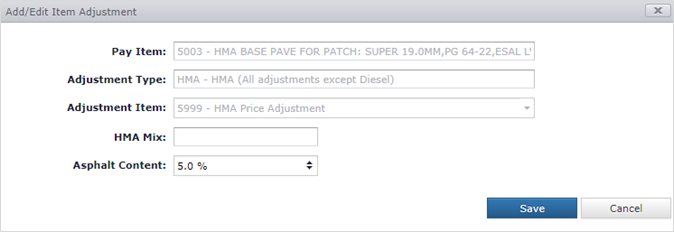
Some Adjustment have default properties which may be edited by the authorized personnel (RE, OE and Auditor). These default properties may be edited by clicking the Edit link in the dropdown button.
Note: Only default properties associated adjustment may be edited. In the example below, the user can edit the HMA Mix and Asphalt Content fields, but not the Pay Item, Adjustment Type and Adjustment Item fields.
Note: The HMA Mix and Asphalt Content properties may only be edited in the HMA Price Index base item adjustment record. The Edit link on the HMA Density and HMA Mix Pay rows are disabled. This is by design.
- Usage Tab
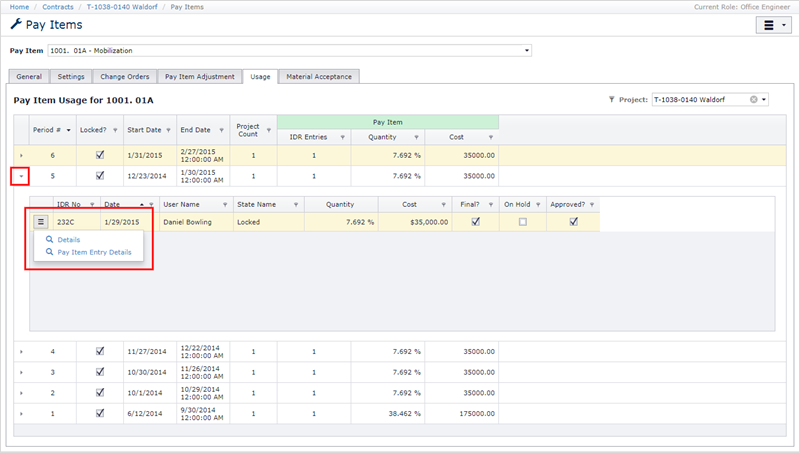
The Usage tab summarizes item usage for each estimate period. It displays start and end date for the estimate period, IDR item entries, item quantity and cost used.
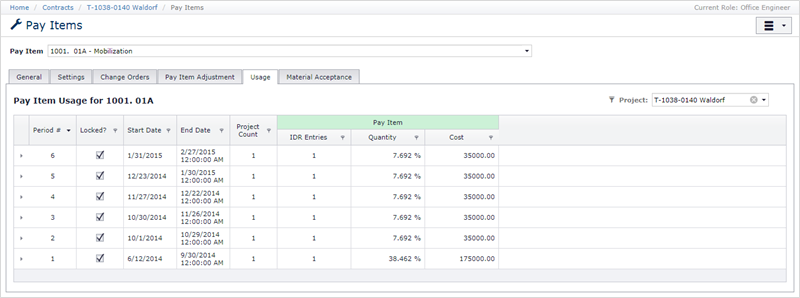
You can see further details for a period by expanding the row. The expanded row contains grid containing IDR entries containing the item. To see details of the IDR item, click the Pay Item Entry Details. To see further details about the IDR, please click the Details link.
- Material Acceptance Tab
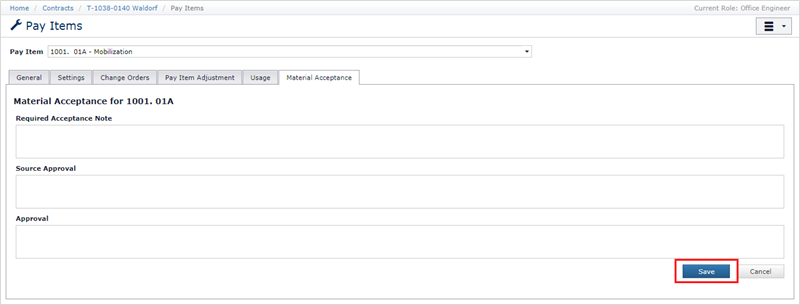
The Material acceptance tab contains information about Material for selected item. Users can add Required Acceptance Note, Source Approval and Approval notes under this tab.
Next Topic: Sub Items