13.2 Sub Items
A sub item is part of a pay item. A pay item can be divided into multiple sub items for easier distribution of tasks/materials/resources.
You can navigate to the Sub Items page using the Sub Items link under Item Management section of the Management Tools page.
Topics Discussed:
- Sub Items Overview
By default, the sub items page shows only Pay Items with Sub Items.
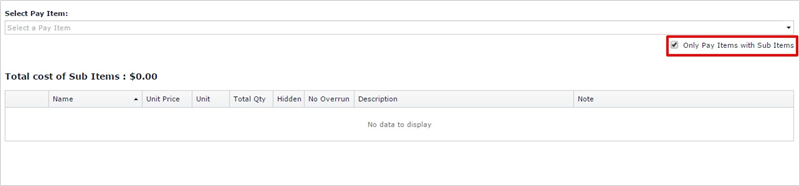
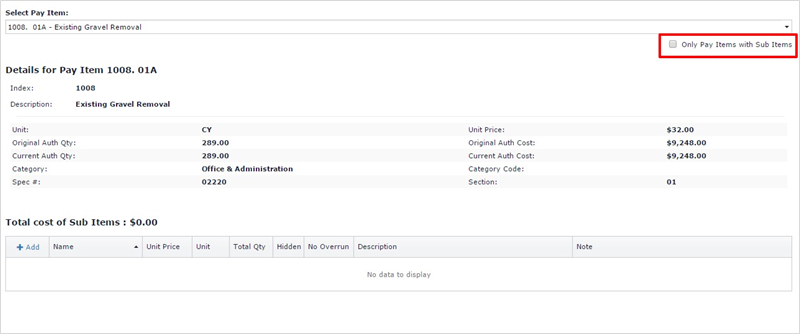
To see all Pay Items, uncheck the checkbox “Only Pay Items with Sub Items” located at the bottom right of the dropdown.
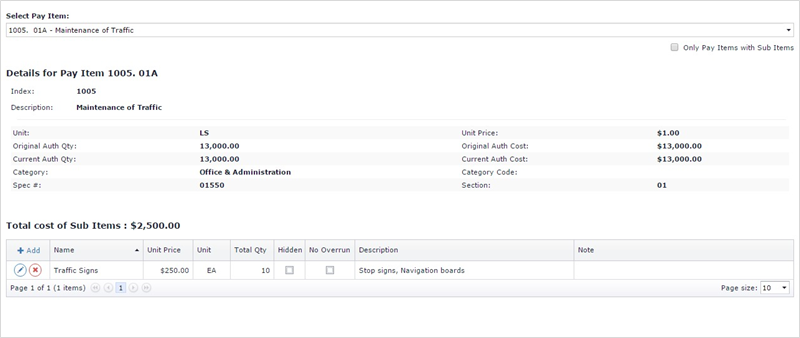
To see sub items of a pay item, select the pay item from the dropdown. The sub items frame displays details of the selected pay item, sub items of the pay item along with total cost of sub items.
- Adding a Sub Item
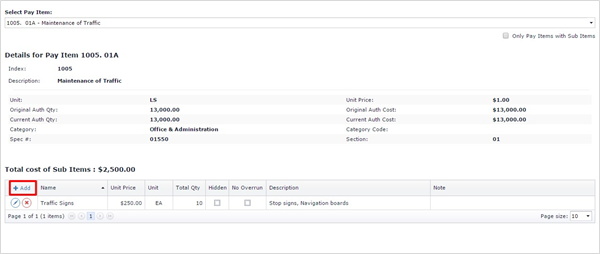
To add a sub item to a pay item, select the pay item from the pay item dropdown. Click the Add button located in the upper left corner of the sub items grid.
Fill in the details for the sub item.
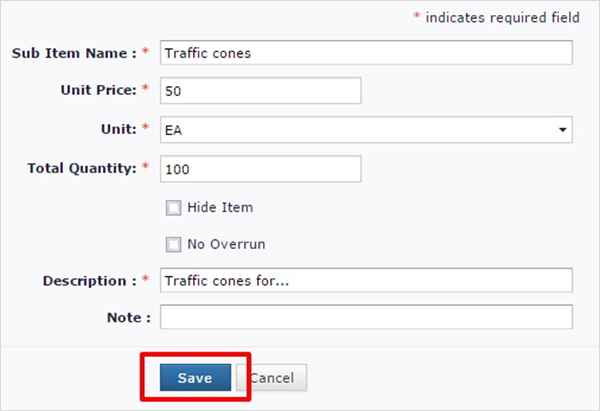
Add/Edit Sub Item
- Sub Item Name – Name of the sub item
- Unit Price – Unit price of the sub item
- Unit – Unit
- Total Quantity – Quantity of the sub item
- Hide Item – True, if the sub item is not to be displayed on the Add IDR pay item tab
- No Overrun – True, if the sub item cannot be overrun
- Description – Sub item name description
- Note – Note for the sub item
Click Save to add sub item to the pay item.
- Editing a Sub Item
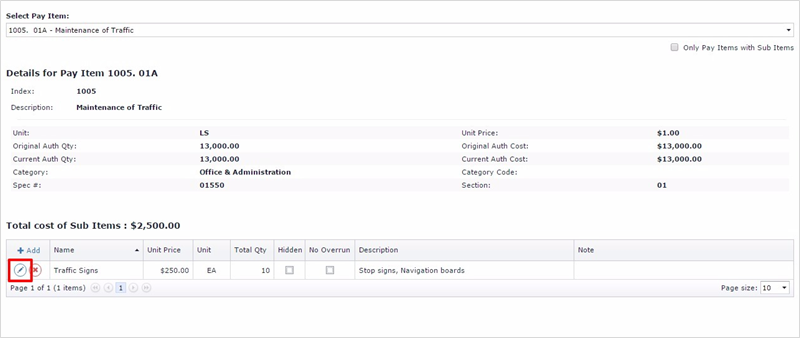
To modify a sub item, click the Edit button located in front of the sub item record.
- Deleting a Sub Item
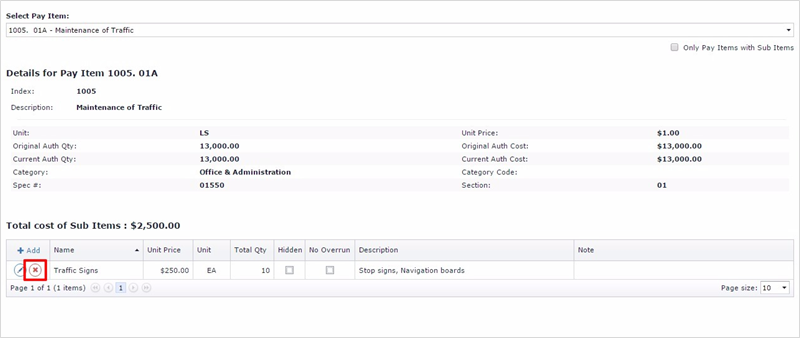
Click the Delete button located in front of the sub item entry in the grid.
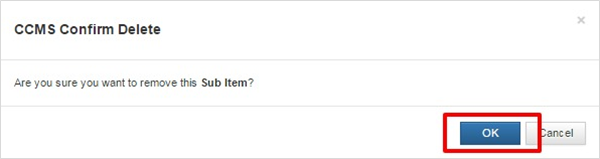
You will be required to confirm the deletion.
Next Topic: Stored Material