-
Project Equipment for the Basic data entry mode involves managing a list of Equipment Types on the project. If you find the appropriate equipment type is not available it must be added to the Project Equipment Type list before it can be referenced by an IDR. These new Project Equipment records can be added either by the Office Engineer and synced to the Tablet, or by the Inspector using the Tablet application. Once the added, the Project Equipment record (Equipment type) will be available for all future IDRs.
To add a new Project Equipment record on the tablet:
- Tap the Crews tab
- Tap the Crew to add equipment type
- Tap the Equipment button
- Tap the Add button in the Equipment toolbar
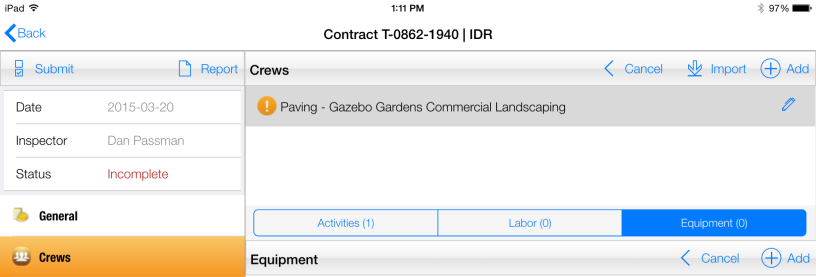
Figure 52 - Equipment function toolbar
- In Add Equipment form, tap the (+) icon located on the Equipment line

Figure 53 - Add Equipment form, Equipment line
Note: Tapping the Select Type… link on the Type field will display the current list of Project Equipment Types. If the Show Default Types is checked, the list will display the default application equipment types.
- Tap the (+) located on the Type line
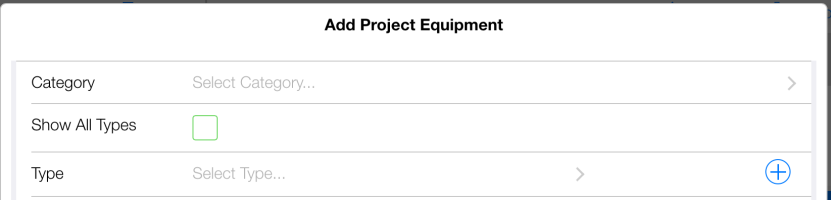
Figure 54 - Add Project Equipment form, Type line
- Select a Category for the new equipment type from the drop down list
- Enter the new type of equipment in the highlighted New Type field
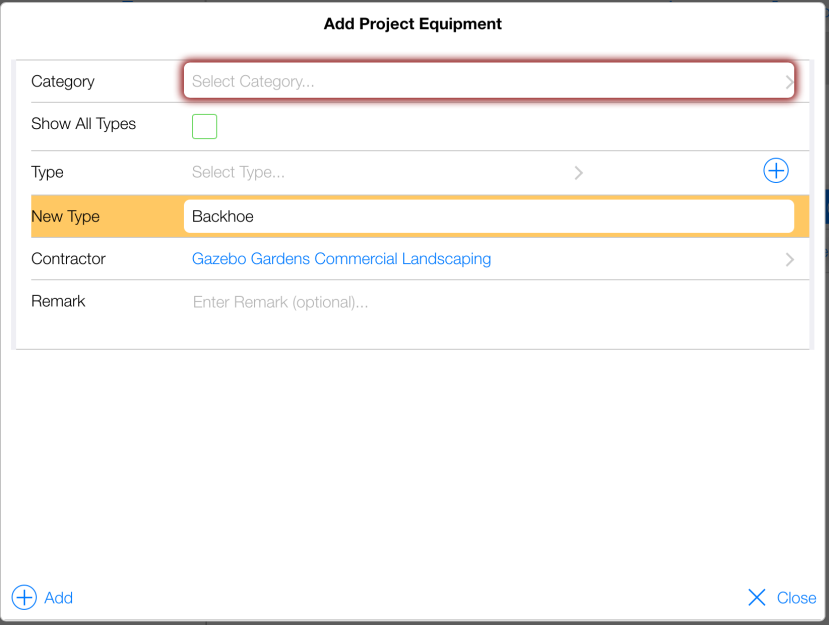
Figure 55 - Add Project Equipment form
- Tap the (+) Add button