-
Project Equipment for the Detailed data entry mode is managed via the same process as it is for the Basic data entry mode. The only difference involves the level of detail needed for each equipment record. In the Detailed mode, each piece of equipment for a specific Type is managed individually, while in the Basic mode all pieces of equipment of the same Type are managed collectively, as one entry.
To add a new Project Equipment record on the tablet in Detailed mode:
- Tap the Crews tab
- Tap the Crew to add equipment type
- Tap the Equipment button
- Tap the Add button in the Equipment toolbar
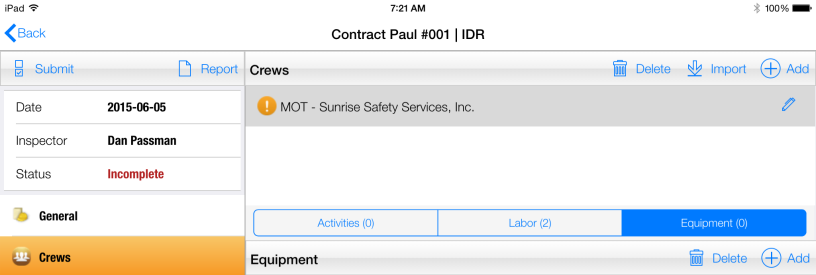
Figure 56 - Equipment function toolbar
- In Add Equipment form, tap the (+) icon located on the Equipment line

Figure 57 - Add Equipment form, Equipment line
Note: Tapping the Select Type… link on the Type field will display the current list of Project Equipment Types. If the Show Default Types is checked, the list will display the default application equipment types.
- In Add Project Equipment form, tap the Type field to select new equipment Type from existing list or tap (+) icon located on the Type line to add a new type
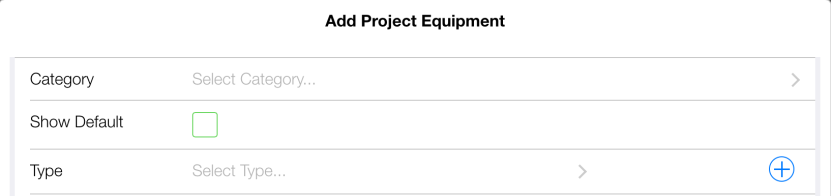
Figure 58 - Add Project Equipment form, Type line
- If adding a new Type, enter type name in highlighted New Type field and fill out remaining fields for equipment record
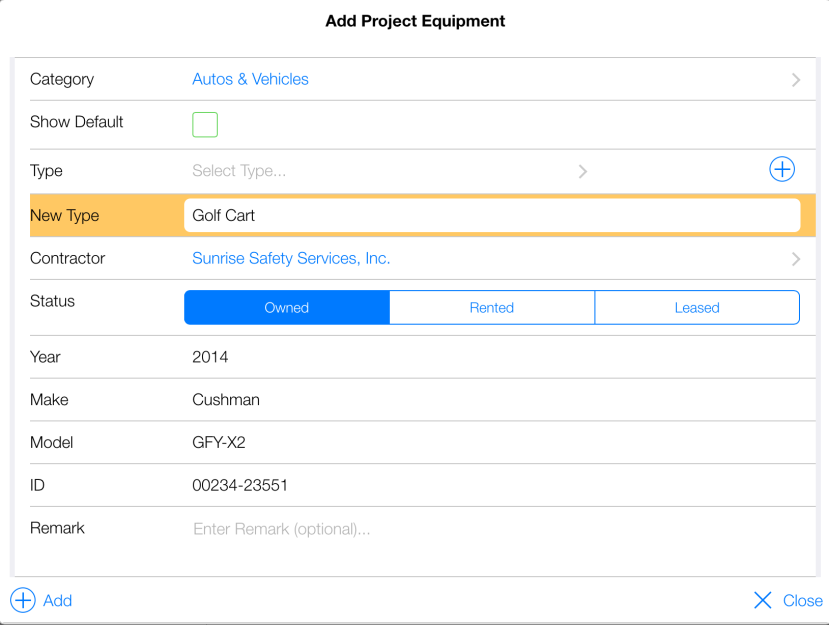
Figure 59 - Add Project Equipment form
- Tap the (+) Add button
- In Add Equipment form, fill out Hours Worked, Hours Idle (if necessary) and any remaining fields
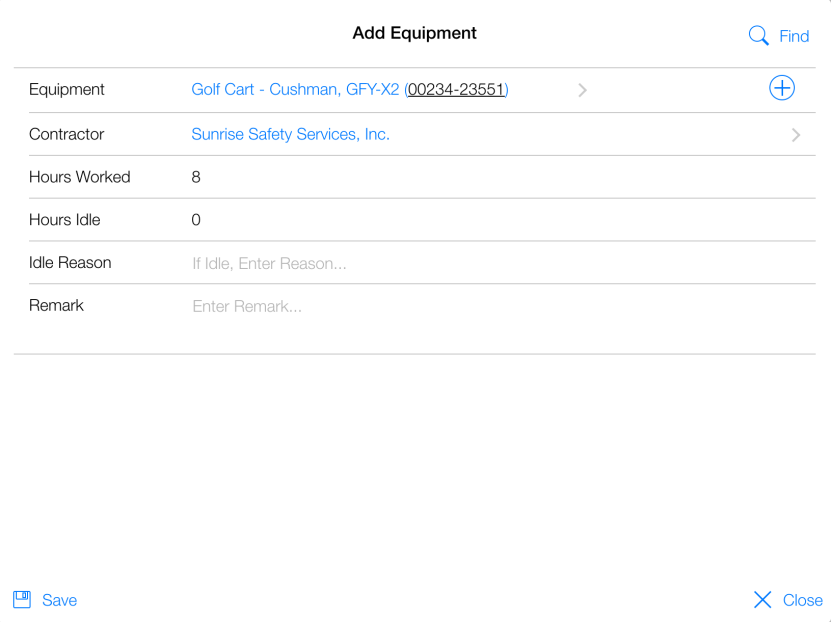
Figure 60 - Add Equipment form
- Tap Save button
- OPTIONAL: Tap Add Attachment button to add document to equipment record
- Tap Save button
- Equipment record has successfully been added to project and IDR
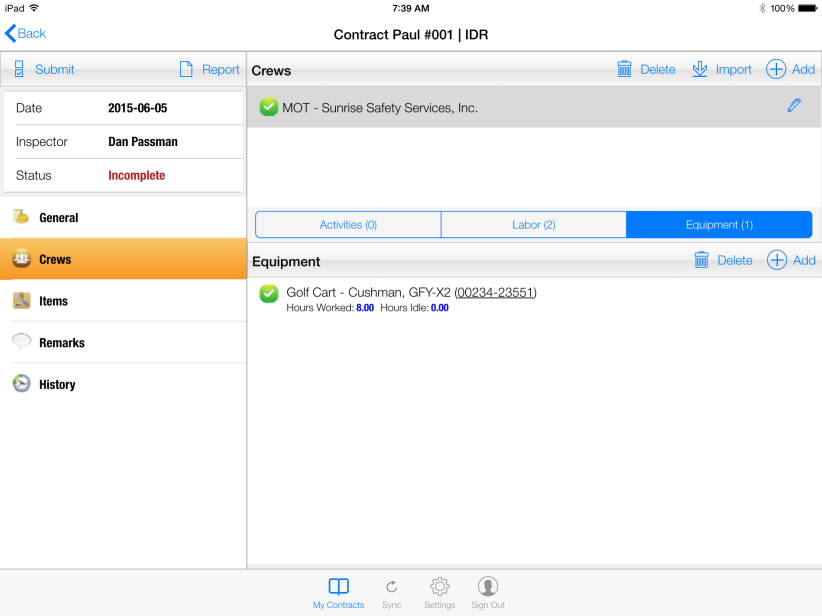
Figure 61 - Equipment record successfully added to project and IDR