11.6.2.2 Step 2: Electronically Approve Progress Payment
Clicking the Review link located in the email notification or clicking the Approvals menu item on the Progress Payment page’s Estimates Awaiting Approval tab page will load the Progress Payment Approval page.
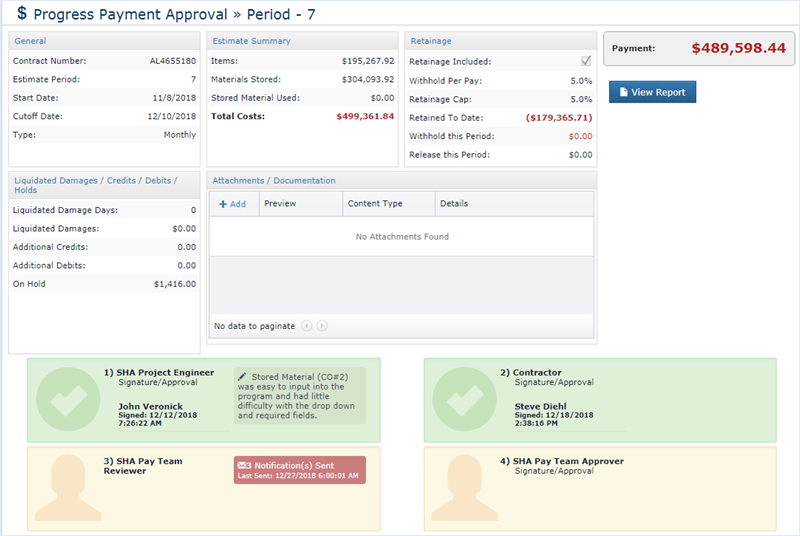
Each box below the Progress Payment summary represents an approval signatory. The CCMS database and privilege management system determines if the application user has permission to sign the Progress Payment. If permission is granted, the user will see the Approve button in the appropriate signatory box. The boxes are color coded to draw attention to the state of the signatory as it relates to the logged in user:
 Indicates the logged in user should review and sign. Action is required.
 Indicates the logged in user cannot sign. No action is required.
 Indicates the signatory has signed the Progress Payment. No action is required.
Note: The diagram indicates two of four approvals have been completed.
Within each signatory box there is a smaller notification box. This box displays the number of notifications sent to the user regarding the Progress Payment Approval. The box also indicates when the last notification was sent.

Next Topic: Method 1: Password Only